
What Does It Mean to “Point a Subdomain”?
When you point a subdomain, you’re basically telling the internet: “Hey, whenever someone visits subdomain.yourdomain.com, send them to this specific server or IP address.”
This is common when you want to:
- Host your main website on one server and a subdomain elsewhere
- Point blog.yourdomain.com to a blogging platform
- Connect app.yourdomain.com to a SaaS app
- Point cpanel.yourdomain.com or mail.yourdomain.com to another host
- Link API endpoints to external servers
- Direct game servers or custom services to another IP
Methods for Pointing a Subdomain
There are two main ways:
- A-Record Method: Use this when the platform gives you an IP address. Example: 123.45.67.89
- CNAME Method: Use this when the platform gives you a domain or hostname. Example: server.examplehost.com
I’ll show you how to do both.
Step 1: Log in to Your telaHosting cPanel
- First, log in to your telaHosting Client Area using your registered email and password.
- From the dashboard, select your hosting account and click “Log in to cPanel” to access the dashboard.
- Once inside, look for Zone Editor—this is where you’ll manage DNS records.
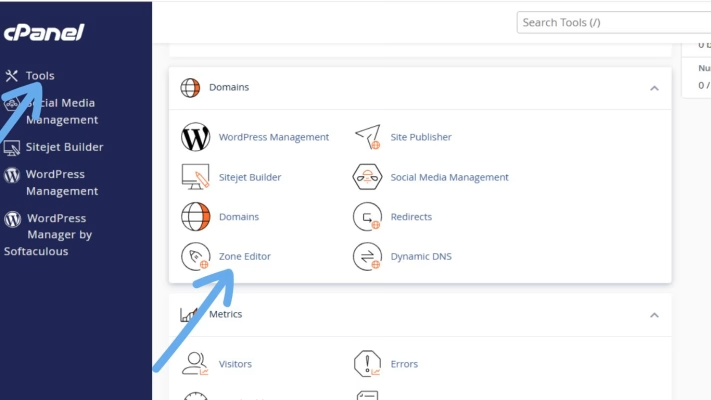
Step 2: Open the Zone Editor
- Click Zone Editor → Manage beside the domain you want to modify.
- You’ll now see all DNS records for your domain.
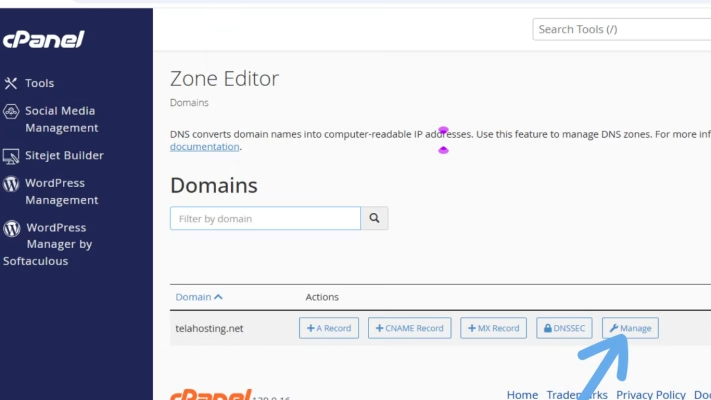
This is where you’ll add your new domain record.
Step 3: Add a Subdomain A-Record (Point to an IP)
Use this method when the other server gives you an IP address. Example: app.yourdomain.com → 202.55.90.120
How to Add the A-Record:
- Click Add Record
- Select A Record
- In the Name field, enter your subdomain: app
- In the Address field, enter the server IP: 202.55.90.120
- Click Save Record
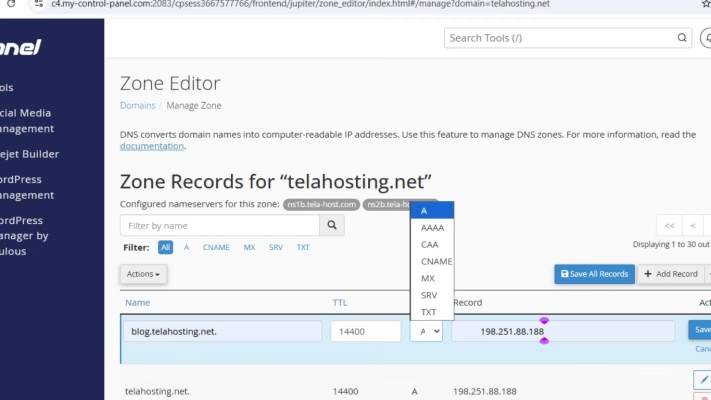
That’s it! Your subdomain is now pointing to the new server.
Step 4: Add a CNAME Record (If the server gives you a hostname)
Some services do not use IPs. Instead, they give you a target domain like: app.exampleplatform.com
How to Add a CNAME:
- Click Add Record
- Select CNAME
- In the Name field, enter your subdomain: app
- In the CNAME / Target field, enter the hostname: app.exampleplatform.com
- Save the record
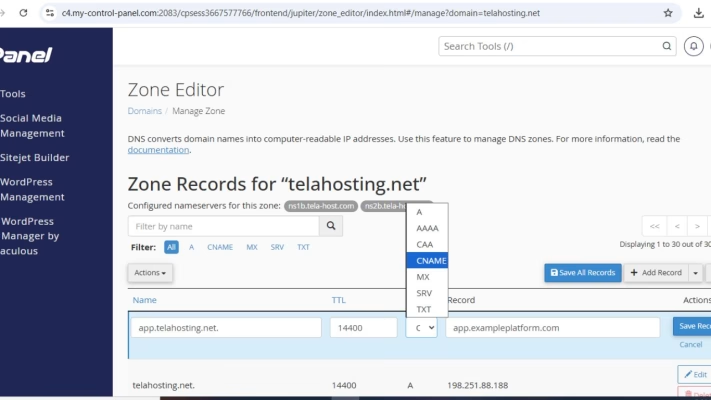
Use this method if the service recommends CNAME for better flexibility.
Step 5: Remove Conflicting DNS Records
A subdomain cannot have both A and CNAME records at the same time. If an A-record already exists for that new domain and you want a CNAME instead, delete the A-record first.
Same applies in the opposite case.
Step 6: Wait for DNS Propagation
DNS changes usually apply quickly, but full global propagation takes 5 minutes to 24 hours.
To check propagation status, use:
- dnschecker
- mxtoolbox/dnslookup
Just enter your new domain and select A or CNAME.
Common Problems and Fixes
- “Subdomain not loading”: Check if DNS has finished propagating.
- “This site can’t be reached”: You may have pointed to the wrong IP or hostname.
- The subdomain points to the main website: This means you forgot to remove an existing A-record.
- Service requires a port (like 8080 or 3000): DNS can’t handle ports. The other server must route that internally.
- SSL not working for the subdomain: After DNS propagation, install SSL: cPanel → SSL/TLS → AutoSSL
Conclusion
Pointing a subdomain to another server through cPanel DNS may sound technical, but once you understand the basics of A-records and CNAMEs, it becomes one of the easiest tasks you’ll ever do. Whether you’re connecting an app, store, blog, or external platform, you can do everything right inside telaHosting’s DNS manager.
Just follow the steps, allow DNS to propagate, and your new domain will connect smoothly.
FAQs
1. Which is better: A-record or CNAME?
Use A-record for IP addresses, CNAME for hostnames.
2. How long does DNS propagation take?
Usually 5 minutes –24 hours on telaHosting.
3. Do I need hosting to point a subdomain?
No, you only need DNS access.
4. Can I point multiple subdomains to different servers?
Yes, each new domain can point to its own IP or hostname.
5. Will telaHosting help me if I get stuck?
Absolutely, our support team is always available.
Need help? Our friendly support team is always here for you! Reach out below.
Happy hosting! 🌟