

What Is Mixed Content?
Mixed content happens when your website loads over HTTPS, but some of your resources (images, CSS, scripts, videos) still load over HTTP.
Example of insecure links causing the problem:
- http://yourdomain.com/image.jpg
- http://yourdomain.com/style.css
- http://cdn.yourdomain.com/script.js
This breaks your SSL and makes the browser mark your site as “Not Fully Secure.”
After a DNS migration, this problem appears because:
- URLs were hard-coded to HTTP
- The new server uses HTTPS but old paths still exist
- CDN or subdomains use old DNS records
- A caching plugin is still pointing to the old insecure URLs
Let’s fix it.
1. Confirm Your SSL Is Installed and Active on the New Server
Before fixing mixed content, make sure your SSL certificate is active.
Here’s how:
1. Log in to cPanel
2. Go to SSL/TLS Status
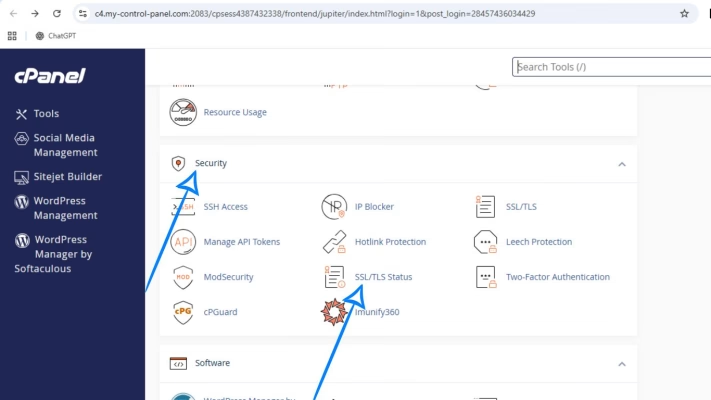
3. Click Run AutoSSL
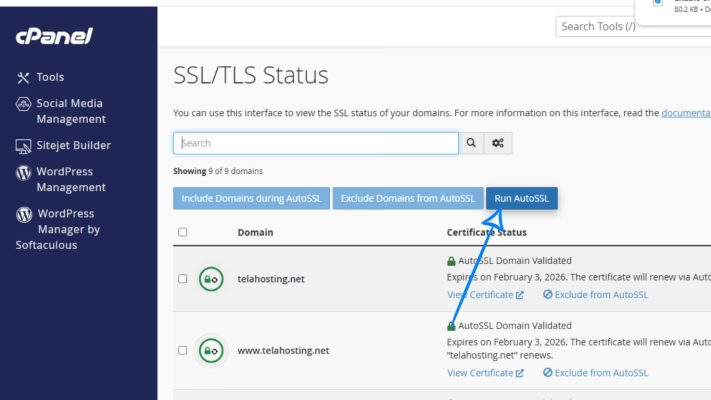
4. Ensure both yourdomain.com and www.yourdomain.com show green padlocks
If SSL is not active, mixed content will continue no matter what you fix.
2. Update Your DNS Correctly (Very Important)
Mixed content often appears because your DNS was migrated but the old server is still being referenced.
Make sure:
- A-record points to the new telaHosting IP
- www CNAME points to your main domain
- Old CDN or subdomain records are updated
- You deleted outdated HTTP redirection rules
Go to: cPanel → Zone Editor → Manage
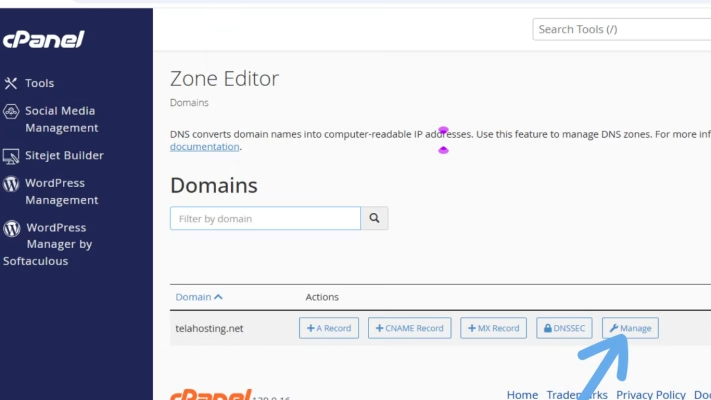
Correct format:
@ A new-server-IP
www CNAME yourdomain.com
After updating DNS, wait a few minutes.
3. Clear Your Browser and Device DNS Cache
Your device may still be loading old insecure URLs.
Try this:
- Force refresh (CTRL + SHIFT + R)
- Try the site in incognito
- Test with mobile data
- Restart your browser
If the issue disappears on mobile but not on your PC → it’s device caching.
4. Fix Mixed Content Automatically (WordPress Users)
If your website runs on WordPress, this is the fastest method. Install this plugin: Really Simple SSL
It automatically:
- Rewrites HTTP links to HTTPS
- Fixes insecure images
- Cleans your .htaccess
- Enables secure redirects
After activating it, your site becomes fully secure in seconds.
5. Fix Mixed Content Manually (Non-WordPress or Custom Sites)
If you’re not using WordPress, update insecure URLs manually.
Step 1: Search for old HTTP URLs
Check these places:
- HTML files
- CSS files
- JS files
- Includes or theme files
- Image paths
- Config files
Replace: http://yourdomain.com/ with: https://yourdomain.com/
Make sure every file points to HTTPS.
6. Update Your .htaccess to Force HTTPS
Even after fixing your URLs, your site may still load HTTP unless you force HTTPS at the server level.
Add this code inside public_html/.htaccess:
- RewriteEngine On
- RewriteCond %{HTTPS} !=on
- RewriteRule ^ https://%{HTTP_HOST}%{REQUEST_URI} [L,R=301]
This automatically converts all old HTTP traffic to HTTPS.
7. Clear Cache (Server, CDN, or Website)
Mixed content can stay because cached files still use old HTTP URLs.
Make sure you clear:
- Browser cache
- WordPress cache plugins (LiteSpeed, WP Rocket, etc.)
- CDN cache (Cloudflare, BunnyCDN)
- cPanel cache (LiteSpeed or Apache cache)
If you’re using Cloudflare:
Go to: Cloudflare → Caching → Purge Everything
This instantly refreshes your site.
8. Check If External Scripts Are Causing Mixed Content
Sometimes the issue isn’t from your domain. It may come from:
- Old analytics scripts
- HTTP CDN links
- External fonts
- Old JavaScript from a previous host
If any external resource still uses http://, update them to https://.
9. Update Subdomains (CDN, Blog, Files, Store…)
If you use subdomains:
- cdn.yourdomain.com
- blog.yourdomain.com
- store.yourdomain.com
Each must have:
- A-record pointing to the right IP
- SSL installed
- HTTPS forced
Otherwise, they will trigger mixed content warnings.
Conclusion
Fixing mixed content issues after a DNS migration is easier than it seems. The key is making sure your SSL is active, your DNS is updated correctly, and every resource on your site loads securely through HTTPS. Once you clean up old HTTP links and force HTTPS, your website becomes fully secure again—no warnings, no broken images, no browser errors.
FAQs
1. How long does it take for mixed content fixes to reflect?
Usually within minutes after clearing cache.
2. Why do images disappear after DNS migration?
Their URLs still point to old HTTP paths.
3. Will installing SSL alone fix mixed content?
No — you must update insecure resource URLs too.
4. Do I need a paid SSL to fix this?
No. telaHosting AutoSSL works perfectly.
5. Can Cloudflare cause mixed content?
Yes, if your SSL mode is not set to “Full” or if DNS is outdated.
Need help? Our friendly support team is always here for you! Reach out below.
Happy hosting! 🌟