
What Is Mixed Content?
Mixed content happens when:
- Your website loads using HTTPS
- But some files (images, scripts, CSS, fonts) still load using HTTP
So the browser thinks: “This page is partly secure and partly not secure.” And that’s why you see warnings.
Why Mixed Content Often Happens After DNS Migration
After a DNS migration, mixed content issues are very common because:
- Old URLs are still cached
- Website files still reference the old HTTP links
- The site URL wasn’t fully updated to HTTPS
- External resources were hard-coded
- SSL was added after migration, not before
This doesn’t mean your migration failed. It just means a few cleanups are needed.
Step 1: Confirm SSL Is Properly Installed First
Before fixing mixed content, make sure SSL is working.
Check this:
- Visit https://yourdomain.com
- Make sure the page loads
- Ensure SSL is active in DirectAdmin → SSL Certificates
If SSL is not installed yet, fix that first. Mixed content fixes only make sense after SSL is active.
Step 2: Identify Mixed Content Files
The easiest way:
- Open your website in Google Chrome
- Right-click → Inspect
- Click the Console tab
You’ll see warnings like: Blocked loading mixed active content “http://example.com/image.jpg”
These messages tell you exactly which files are loading over HTTP.
Step 3: Update Website URLs to HTTPS
This is one of the most important fixes. Check your site configuration:
- CMS settings (like WordPress)
- Config files
- Database entries
Your site URL should be: https://yourdomain.com, not: http://yourdomain.com
If the base URL is still HTTP, mixed content will keep appearing.
Step 4: Fix Mixed Content in Images, Scripts, and CSS
Now we clean up the actual files. Common places to check:
- Image links
- JavaScript files
- CSS background images
- External fonts or libraries
Replace: http://yourdomain.com/file.jpg With: https://yourdomain.com/file.jpg. Or better yet, use relative URLs like: /file.jpg
This avoids future issues completely.
Step 5: Fix Mixed Content in WordPress (If You Use It)
If your site runs on WordPress (very common), Do this:
- Update WordPress Address (URL) to HTTPS
- Update Site Address (URL) to HTTPS
- Use a trusted plugin to scan and replace HTTP links
This cleans up old links stored in the database after migration.
Step 6: Check External Resources
Sometimes the issue isn’t from your site. Check if you’re loading:
- Fonts
- Scripts
- APIs
- Ads
- Analytics
From external sources using HTTP.
If the external service doesn’t support HTTPS, it’s best to remove or replace it.
Step 7: Enable Force HTTPS Redirect in DirectAdmin
Even after fixing mixed content, forcing HTTPS helps prevent future problems.
How to do it:
- Go to DirectAdmin
- Open Domain Setup
- Select your domain
- Enable Force SSL / HTTPS Redirect
- Save changes
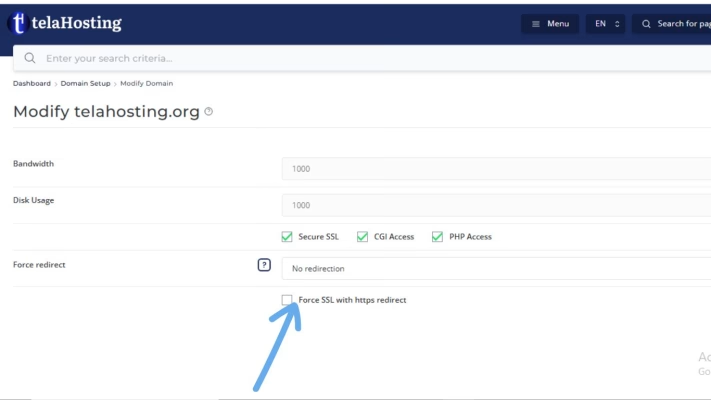
This ensures everything loads securely.
Step 8: Clear Cache (Very Important)
After a DNS migration, caches can be stubborn. Clear:
- Browser cache
- CMS cache (if any)
- CDN cache (if used)
Then reload your site in Incognito mode.
This step alone often makes the padlock appear.
Step 9: Recheck With Online Tools
Use these tools to confirm everything is clean:
- WhyNoPadlock
- Browser console
- SSL checker tools
If there are no mixed content warnings, you’re good.
Common Mistakes That Keep Mixed Content Issues Alive
Avoid these:
- Fixing SSL but ignoring file URLs
- Forgetting to update the database
- Leaving hard-coded HTTP links
- Not clearing cache after fixes
- Assuming DNS migration broke the site
Mixed content is about content, not DNS itself.
Conclusion
Mixed content issues after a DNS migration are common and completely normal. They don’t mean your site is broken or insecure. They simply mean some parts of your website still remember the old HTTP setup.
With DirectAdmin on telaHosting, fixing this is all about aligning your DNS, SSL, and content URLs. Once everything speaks HTTPS, the warnings disappear, the padlock returns, and your site looks trustworthy again.
Take it step by step, and you’ll be sorted in no time.
FAQs
1. Does mixed content affect SEO?
Yes. Browsers may block content, and search engines prefer fully secure pages.
2. Can DNS migration cause mixed content?
Indirectly, yes — especially when SSL is added after migration.
3. Will Force HTTPS alone fix mixed content?
No. It helps, but URLs must still be corrected.
4. Is mixed content dangerous?
It can expose users to security risks, which is why browsers warn about it.
Need help? Our friendly support team is always here for you! Reach out below.
Happy hosting! 🌟