
If your emails are landing in spam, not being delivered at all, or bouncing back after sending, I know how frustrating that can be — especially when you rely on email for business or customer communication. In most cases, this problem isn’t your email content. It’s DNS configuration.
Why DNS Affects Email Deliverability
Email servers don’t trust just any sender. Before accepting your email, they check your DNS records to confirm:
- Where your email is coming from
- Whether your server is authorized to send emails
- Whether your domain is authenticated
If these checks fail, your emails get rejected or marked as spam.
That’s why DNS plays a huge role in email delivery.
Common Email Problems Caused by DNS
If your DNS is misconfigured, you may experience:
- Emails going to spam
- Emails not sending at all
- Bounced messages
- “Sender not authorized” errors
- Emails marked as suspicious
The fix usually involves adjusting a few DNS records correctly.
Step 1: Confirm Your MX Records Are Correct
MX records tell the world where to deliver your emails.
How to check:
- Log in to DirectAdmin
- Go to Account Manager → DNS Management
- Look for MX records
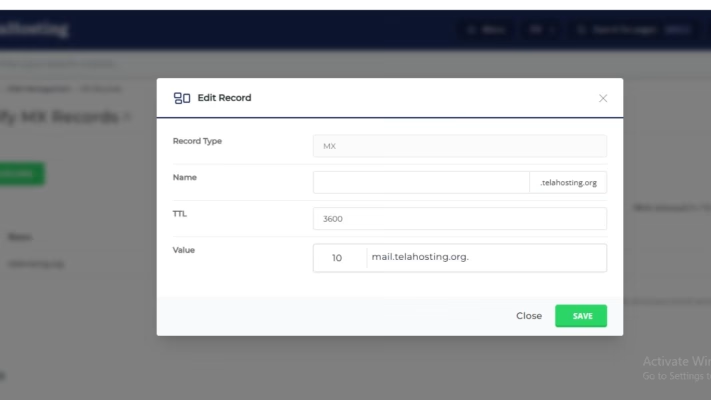
For our email at telaHosting, it should look similar to: mail.yourdomain.com, With the correct priority (usually 10).
If you use external email services (Google Workspace, Microsoft 365), make sure only their MX records exist.
Step 2: Fix Your SPF Record (Very Important)
SPF tells receiving servers which mail servers are allowed to send emails on behalf of your domain.
What to check:
- You should have only ONE SPF record
- It must include your mail server
Example SPF for telaHosting: v=spf1 a mx ~all
If you use third-party services (Mailchimp, SendGrid), include them instead of creating multiple SPF records.
Multiple SPF records = failed delivery.
Step 3: Enable DKIM for Email Authentication
DKIM adds a digital signature to your emails, proving they haven’t been altered.
How to enable:
- Go to DirectAdmin
- Click Email Authentication or DKIM Keys
- Enable DKIM
- Save changes
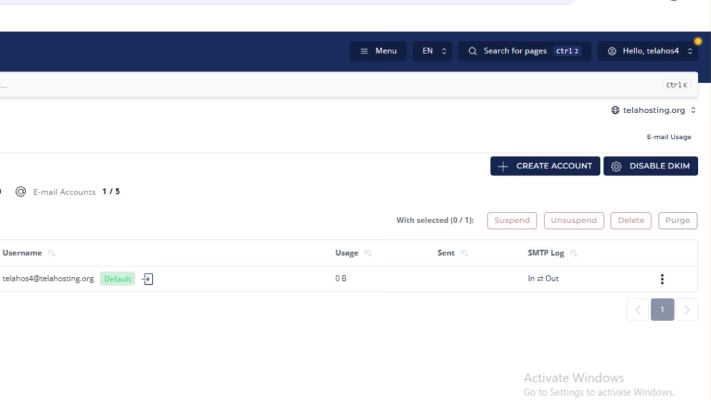
If you don’t see DKIM options, contact our support to enable it at the server level.
Step 4: Add a DMARC Record for Better Trust
DMARC helps receiving servers know how to handle emails that fail SPF or DKIM checks. Example DMARC record: v=DMARC1; p=none; rua=mailto:[email protected];
DMARC doesn’t block emails — it improves reputation and reporting.
Step 5: Check Your Domain’s Reverse DNS (rDNS)
Some mail servers reject emails if reverse DNS is missing.
What to do:
- Contact us at telaHosting support
- Ask to verify or set rDNS for your server IP
This is handled server-side.
Step 6: Verify Email Hostname Matches the Server
Your mail server hostname should match your domain.
Check:
- Mail server name
- A record for mail.yourdomain.com
- MX record points correctly
Consistency improves trust.
Step 7: Remove Conflicting or Old DNS Records
Clean DNS = better delivery.
Remove:
- Old MX records
- Duplicate TXT records
- Old SPF records
- Unused DKIM entries
Too many records confuse receiving servers.
Step 8: Test Your Email Delivery
After fixing DNS:
- Send a test email to Gmail, Outlook, Yahoo
- Check spam folders
- Use tools like: MXToolbox and Mail Tester
These tools show exactly what’s still wrong.
Common DNS Mistakes That Hurt Email Delivery
Avoid these mistakes:
- Multiple SPF records
- Missing DKIM
- Wrong MX priority
- Using wrong nameservers
- Editing DNS in the wrong control panel
- Forgetting DMARC
Fixing these restores delivery fast.
How Long Until Email Delivery Improves?
Usually:
- Immediate improvement after fixing DNS
- Full reputation recovery may take 24–48 hours
Be patient — email systems need time to rebuild trust.
Conclusion
Email deliverability issues are frustrating, but they’re rarely permanent. In most cases, fixing your DNS records in DirectAdmin is all it takes to restore trust and get your emails delivered where they belong — the inbox.
With the right MX, SPF, DKIM, and DMARC setup on telaHosting, your emails will send confidently and consistently again.
Take it step by step, and you’ll be back on track.
FAQs
1. Why are my emails going to spam after DNS changes?
Because SPF, DKIM, or MX records may be incorrect.
2. Can DNS alone stop email delivery?
Yes. Incorrect DNS is one of the biggest causes of email failure.
3. Should I use DMARC immediately?
Yes. Start with p=none for monitoring.
4. How many SPF records should I have?
Only one — always.
Need help? Our friendly support team is always here for you! Reach out below.
Happy hosting! 🌟