
If your emails are not being delivered, bouncing back, going to spam, or simply refusing to arrive in your inbox, there’s a high chance the problem is caused by incorrect MX records. This is one of the most common email issues users’ face, especially after switching hosting providers or trying to connect a custom email service.
What Are MX Records?
MX stands for Mail Exchange, and it tells the internet where your emails should be delivered. MX records is like a postal address. If the address is wrong:
- Your mail won’t arrive
- It might bounce
- Or it might get delivered to the wrong place
The exact same thing happens with emails.
Your MX records must be 100% correct, or email delivery will fail. Even one small mistake — a missing dot, wrong priority, incorrect hostname — can break everything.
Common Signs of Incorrect MX Record
If your MX records are wrong, you may experience:
- Emails bouncing back or not arriving
- People emailing you but you never receive anything
- Your mailbox receiving emails only sometimes
- “No MX record found” errors
- Outgoing emails going to spam
- Your email working on one device but not another
Step 1: Log In to DirectAdmin
To fix MX issues, you need to access your DNS settings.
- Log into your telaHosting Client Area
- Open your hosting plan
- Click “Login to DirectAdmin”
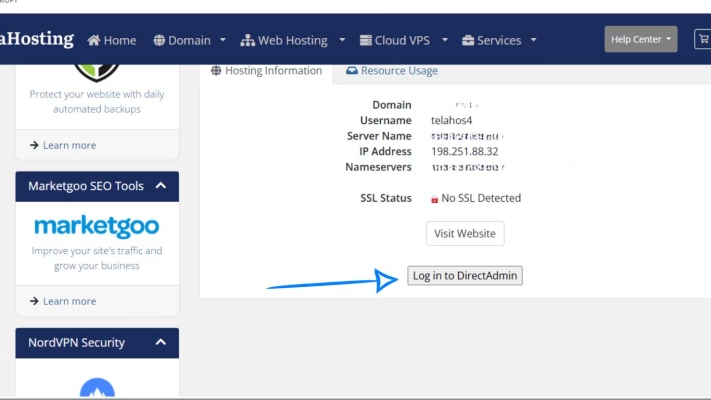
This takes you into your control panel.
Step 2: Go to DNS Management
Inside DirectAdmin:
- Scroll to Account Manager
- Click DNS Management
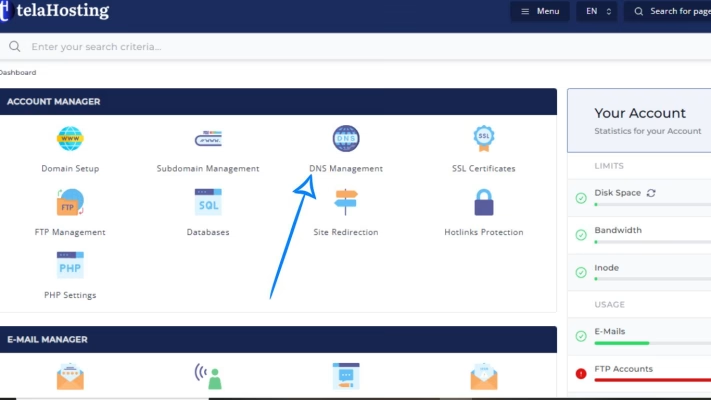
Here, you’ll see all DNS records for your domain.
Step 3: Identify Wrong or Conflicting MX Records
Email delivery issues often happen because:
- The wrong MX records are active
- There are multiple MX records from old providers
- DirectAdmin automatically set default records that conflict with your new provider
Look through the MX list.
If you see MX records that don’t belong to your chosen email provider Delete them. Only keep the MX records from the provider you want to use.
Step 4: Add the Correct MX Records
Depending on your email provider, you must add the right MX values.
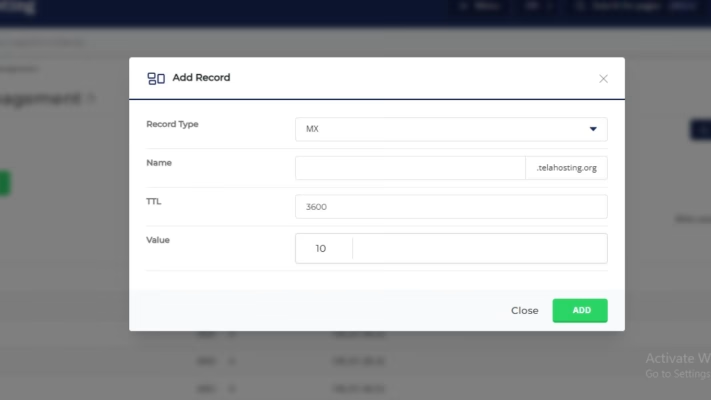
For telaHosting Email
You’ll typically use: mail.yourdomain.com with priority 10
(Be sure your mail.yourdomain.com A-record points to your server IP.)
For Google Workspace
Examples:
- ASPMX.L.GOOGLE.COM (priority 1)
- ALT1.ASPMX.L.GOOGLE.COM (priority 5)
- ALT2.ASPMX.L.GOOGLE.COM (priority 5)
For Microsoft 365
Usually: domain-com.mail.protection.outlook.com (priority 0)
For Zoho Mail
Common records:
- mx.zoho.com (priority 10)
- mx2.zoho.com (priority 20)
Step 5: Add Missing A, TXT, and SPF Records (If Required)
Sometimes your MX record is correct, but supporting DNS records are wrong or missing.
To ensure proper delivery:
- Add SPF
- Add DKIM (if required)
- Add DMARC (optional but recommended)
- Ensure mail.yourdomain.com points to the correct IP
- Remove any A or CNAME records conflicting with mail routing
Without these extras, email may go to spam or fail entirely.
Step 6: Remove “Local Mail Server” Conflicts
If you’re using external email services like Google or Microsoft, DirectAdmin must NOT try to deliver email locally.
Inside DirectAdmin:
1. Go to Email Manager
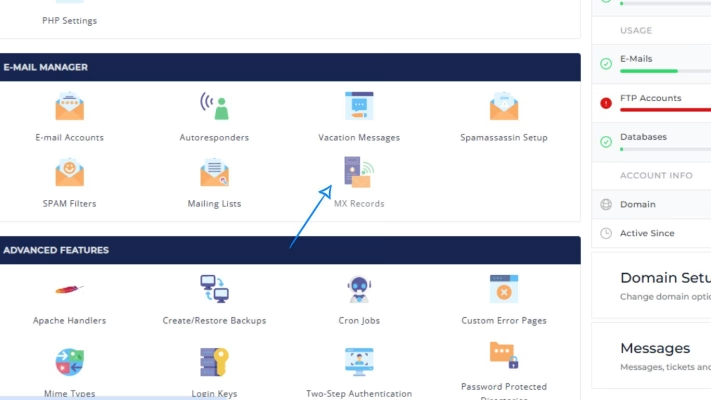
2. Click MX Records
3. You’ll see an option: Local Default
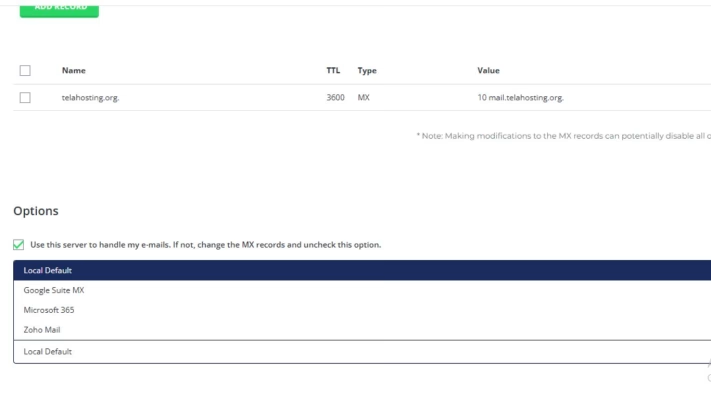 4. If you’re using external email → UNCHECK it
5. This setting alone fixes many delivery failures.
Step 7: Save Changes and Wait for DNS Propagation
After fixing your MX records:
- Email might not work immediately
- DNS needs time to update
Propagation takes:
- 5–30 minutes for telaHosting
- Up to 24 hours globally
During this time, email may behave unpredictably — don’t panic.
How to Verify That Everything Is Working
Use tools like:
Check for:
- Correct MX records
- No conflicts
- No missing entries
- No DNS errors
If everything is green, your email will start working shortly.
Common Reasons Your Email Still Doesn’t Work
Even after fixing MX records, you may still face issues if:
- Your SPF record is wrong: Only ONE SPF record should exist.
- You forgot to add A-record for mail.yourdomain.com: Your mail server needs this hostname.
- You’re using Cloudflare with the “orange cloud” enabled: Email records must ALWAYS be on DNS only (grey cloud).
- DNS is still propagating: Give it time.
- Local Mail Server is incorrectly enabled: This breaks routing for external email providers.
Conclusion
Incorrect MX records are one of the biggest causes of email delivery problems — but the good news is that fixing them in DirectAdmin is simple. With the right DNS settings, correct priorities, and proper supporting records, your email will work smoothly again.
FAQs
1. Why are my emails bouncing back?
Your MX records are likely pointing to the wrong server.
2. How long does it take for MX changes to work?
Usually a few minutes, but global updates may take up to 24 hours.
3. Why do I have multiple MX records?
Old or automatic records may still be active. Delete those you don’t use.
4. Can MX records point to an IP address?
No — MX records must point to a hostname.
5. What if email still doesn’t work?
Check SPF, DKIM, A-records, and the “Local Mail Server” setting.
Need help? Our friendly support team is always here for you! Reach out below.
Happy hosting! 🌟