
What Is DNS?
DNS (Domain Name System) is like the phonebook of the internet. It tells your domain where to point for example:
- Where your website files live
- Where your emails should be delivered
- What services your domain is connected to
So anytime you want to point your domain to a different hosting, link a service like Google Workspace, or add security tools like Cloudflare, you’ll need the DNS Management Panel.
At telaHosting, you get full control over your DNS using the DirectAdmin control panel.
Step 1: Log In to Your telaHosting DirectAdmin Account
1. Log in to Your Account: Enter your registered email and password then click Login.
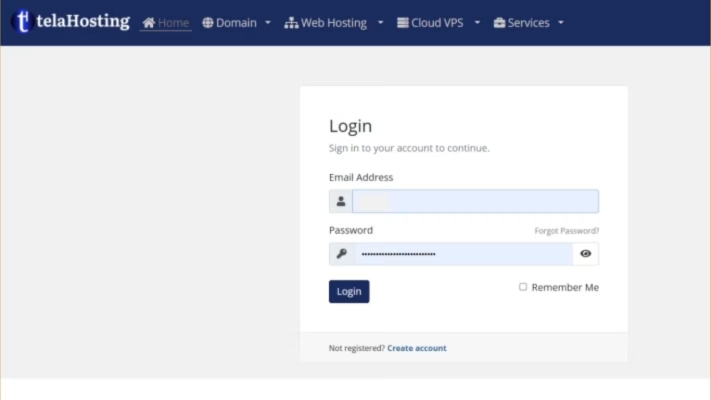
2. Open your Client Area.
3. Go to your hosting service.
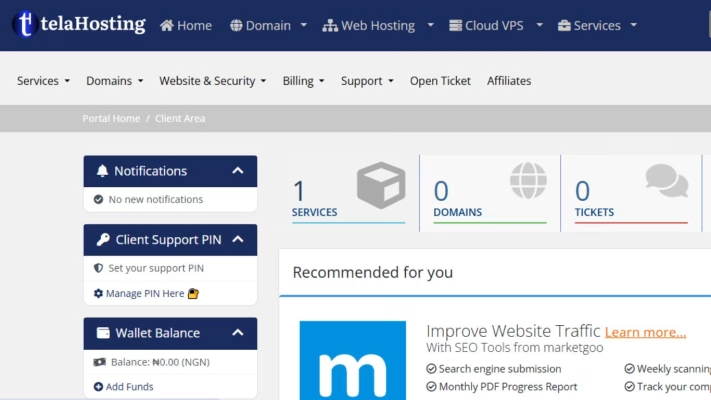
4. Click the Login to DirectAdmin button.
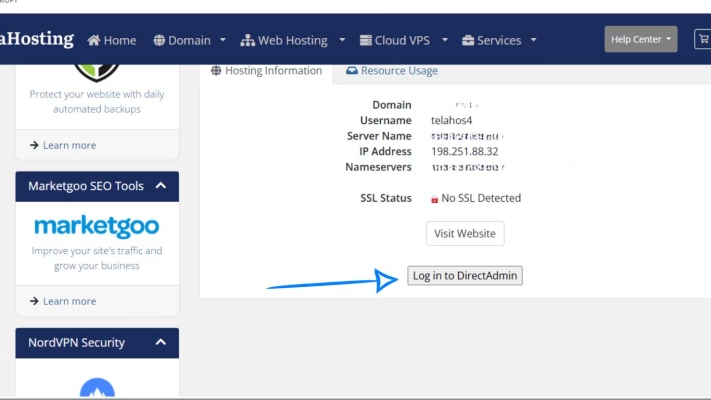
If you don’t have your login details, you can request them from our support — they usually respond fast.
This is your DirectAdmin Dashboard
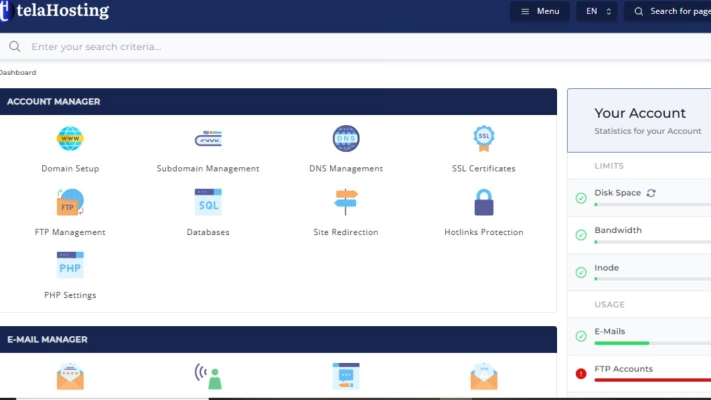
Step 2: Locate the “DNS Management” Section
Once you’re inside DirectAdmin, the layout may look a bit busy, but don’t worry — everything is clearly labelled.
Here’s what to do:
1. Scroll down to the Account Manager section.
2. Click on DNS Management.
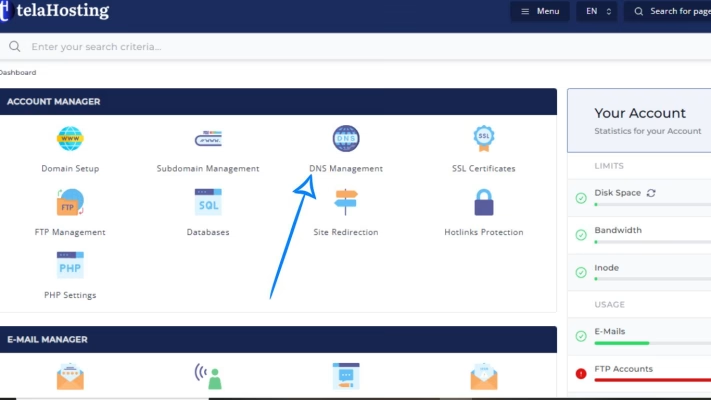
This is where all your Domain Name System records live: A, MX, TXT, CNAME, and more.
Step 3: Select Your Domain (If You Have Multiple)
If you have more than one domain under your account:
- You will see a list of domains.
- Click the one you want to manage.
If it’s just one, DirectAdmin will automatically open it.
Step 4: View and Manage Your DNS Records
After selecting your domain, you’ll see a full list of Domain Name System records. You can:
- Add new records
- Edit existing ones
- Delete old or incorrect records
Each record type has a different function:
- A Record: Points your domain to an IP address
- CNAME: Points one domain to another domain
- MX Record: Controls email delivery
- TXT Record: Used for verification, SPF, DKIM, and security
- NS Record: Identifies your nameservers
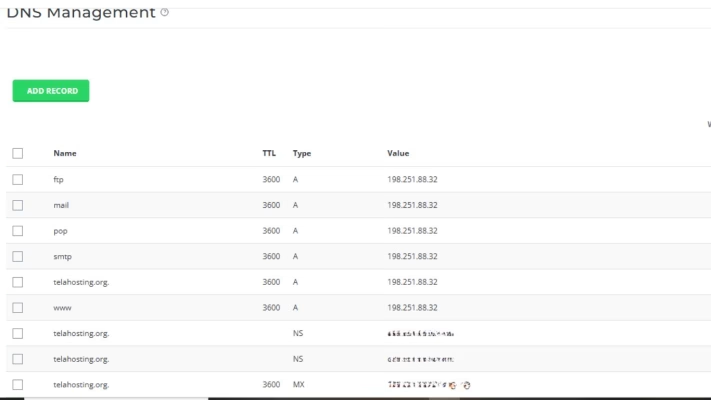
Just make sure you know what you’re changing. A wrong Domain Name System entry can make your website or email stop working and nobody wants that.
Step 5: Save Changes and Allow Propagaton
Whenever you add or edit a DNS record, always click Save. After saving, Domain Name System changes are not instant — they take time to update worldwide. Usually:
- Local changes: 5–15 minutes
- Full global propagation: Up to 24 hours
When Should You Access DNS in DirectAdmin?
- Connecting your domain to a website builder
- Setting up Google Workspace or Microsoft 365
- Using Cloudflare
- Changing hosting providers
- Adding email authentication (SPF, DKIM, DMARC)
- Pointing your subdomain to another server
Tips for Managing DNS Safely
- Don’t delete records unless you’re sure what they do.
- Write down old values before changing anything.
- Don’t touch NS records unless you’re changing nameservers.
- Always wait for propagation before testing.
These small habits can save you from unnecessary headaches.
Conclusion
Accessing the DNS Management Panel in DirectAdmin with telaHosting is a simple process once you know your way around. With just a few clicks, you can manage your Domain Name System records, connect external services, and keep your domain running smoothly.
FAQs
1. Where can I find my DirectAdmin login details?
Your login details are available in your telaHosting Client Area and are also emailed to you after purchase.
2. Can I break my website by editing DNS?
Yes, if you change the wrong record. Always double-check before editing.
3. How long does DNS propagation take?
Propagation usually takes a few minutes but can take up to 24-72 hours.
4. Do I need technical skills to manage DNS?
Not necessarily — just follow the steps carefully.
5. Does telaHosting support help with Domain Name System setup?
Yes, our support team can guide you through any Domain Name System-related tasks.
Need help? Our friendly support team is always here for you! Reach out below.
Happy hosting! 🌟