
What Are SPF, DKIM, and DMARC?
1. SPF (Sender Policy Framework)
SPF is a record that tells the internet which servers are allowed to send emails on behalf of your domain. If a server that isn’t on the list tries to send email using your domain name, it gets rejected.
SPF is like a “sender ID badge.”
2. DKIM (DomainKeys Identified Mail)
DKIM adds a digital signature to your emails so receiving servers can verify they were not tampered with. It’s like sealing an envelope with your official stamp.
3. DMARC (Domain-based Message Authentication, Reporting, & Conformance)
DMARC works with SPF and DKIM to:
- Prevent email spoofing
- Stop scammers from impersonating your domain
- Protect your sender reputation
- Decide what happens to suspicious emails (reject, quarantine, or allow)
DMARC is basically your domain’s security guard.
Why You Need These Records
Adding SPF, DKIM, and DMARC:
- Improves email deliverability
- Reduces spam and spoofing
- Protects your domain from phishing attacks
- Keeps your emails out of Gmail, Outlook, and Yahoo spam folders
- Gives you more control over your domain’s security
If you want your domain to look professional and trustworthy — especially when sending business emails — you absolutely need them.
1. Log into DirectAdmin
Start by logging into your hosting control panel.
- Open your telaHosting Client Area
- Click your DirectAdmin hosting package
- Select “Login to DirectAdmin”
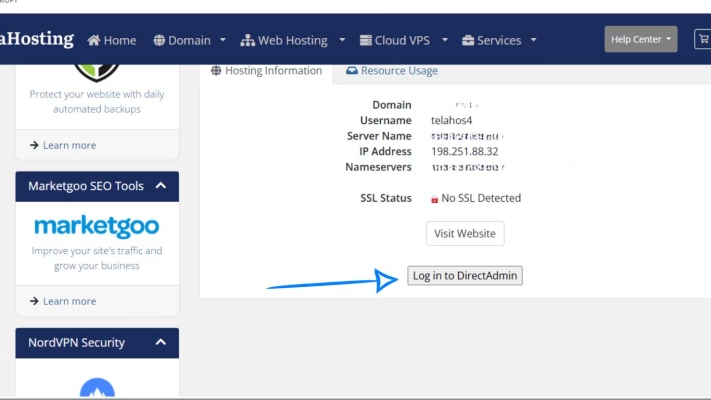
Once inside, you’re ready for DNS configuration.
2. Go to DNS Management
This is where all DNS records are stored.
- Scroll down to Account Manager
- Click DNS Management
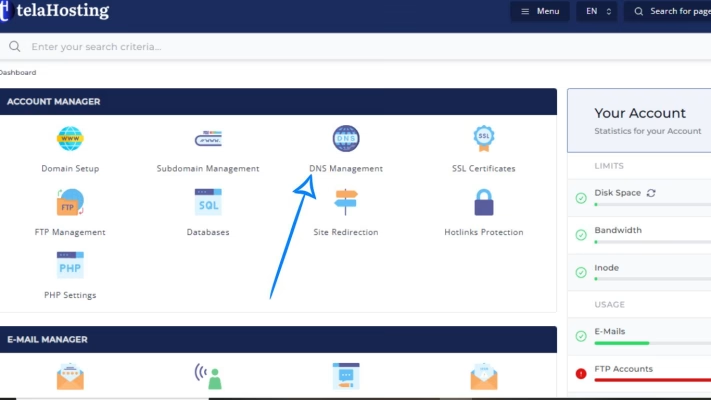
You’ll now see the list of records for your domain.
Adding SPF Record in DirectAdmin
SPF is a TXT record — not an MX or A record.
To add it:
- Click Add Record
- Choose TXT Record
- In the Name field, enter your domain (or leave empty if DirectAdmin auto-fills it)
- In the TXT Record type, select SPF
- In the IP Address field, replace YOUR_SERVER_IP with your actual server IP from DirectAdmin.
- In the Value field, enter your SPF policy
For telaHosting email, the recommended SPF is: v=spf1 a mx ip4:YOUR_SERVER_IP ~all
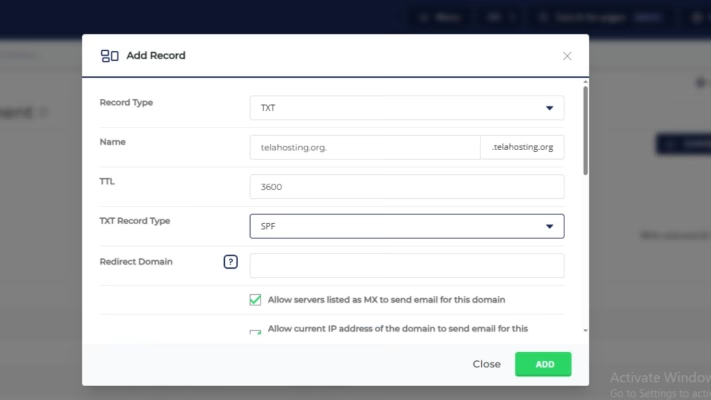
If you use external email services like Google or Outlook, you’ll include them here too.
Examples:
- Google Workspace SPF: v=spf1 include:_spf.google.com ~all
- Microsoft 365 SPF: v=spf1 include:spf.protection.outlook.com ~all
You must have only one SPF record because multiple SPF records will break email delivery.
Enable DKIM Record in DirectAdmin
DKIM is auto generated and included by default in the DNS management in DirectAdmin.
1. Go to Email Manager
2. Click Email Accounts
3. Click Enable DKIM

4. DirectAdmin will automatically generate the required DNS record
Once enabled, you’ll see a DKIM TXT record like: default._domainkey.yourdomain.com
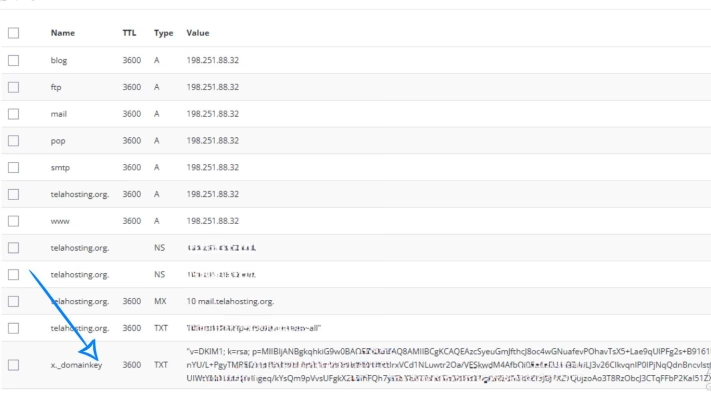
This record is automatically added to your DNS. If it’s missing, you can contact our support center for further assistance.
Adding DMARC Record in DirectAdmin
DMARC is also a TXT record.
- Go back to DNS Management
- Click Add Record
- Select TXT Record
- In Name field, put: _dmarc
- In Value, enter this safe starter policy: v=DMARC1; p=quarantine; rua=mailto:[email protected];
- p=quarantine → suspicious emails go to spam
- rua=mailto: → where reports will be sent
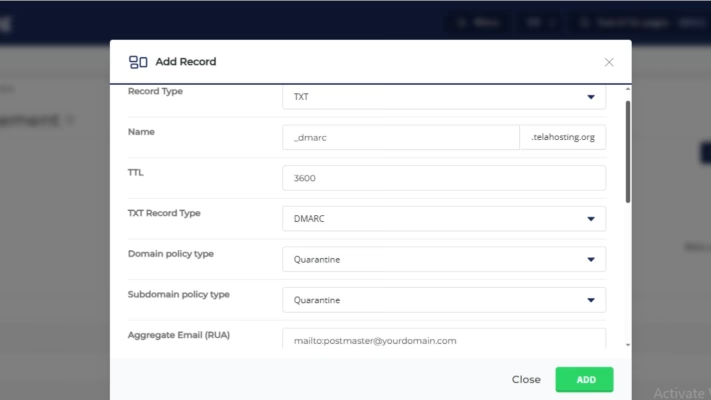
If you want a stricter policy later, you can change:
- p=quarantine → softer
- p=reject → strict
- p=none → monitoring only
For beginners, quarantine is usually the best.
6. Save All Changes
Click add to apply your records. Your SPF, DKIM, and DMARC may take:
- 5–30 minutes to start working
- Up to 24 hours to fully propagate
This delay is normal.
How to Check If Everything Is Working
You can test your DNS using:
Check:
- SPF
- DKIM
- DMARC
Once they all show correctly, your domain is authenticated and email delivery becomes much more reliable.
Conclusion
Setting up SPF, DKIM, and DMARC in DirectAdmin is one of the best things you can do for your email deliverability and domain security. Once these records are correctly added, your emails become more trustworthy, more secure, and far more likely to land in the inbox instead of the spam folder.
FAQs
1. Do I need all three — SPF, DKIM, and DMARC?
Yes. They work together to protect your email and improve deliverability.
2. How long does DNS propagation take?
Usually a few minutes, but globally up to 24 hours.
3. Why are my emails still going to spam?
Your SPF or DKIM might be incorrect, or your domain reputation is low. Give it time.
4. Can I use multiple SPF records?
No — only one SPF record is allowed. Combine everything into one.
5. Does DKIM need renewal?
No, once enabled in DirectAdmin, it stays active unless removed.
Need help? Our friendly support team is always here for you! Reach out below.
Happy hosting! 🌟