

What Are SRV Records? (And Why Do They Matter?)
An SRV (Service) record tells the internet where to find a specific service on your domain. Think of it as a GPS instruction for apps and communication tools.
SRV records help applications:
- Locate servers correctly
- Handle voice/video calls
- Connect to chat services
- Authenticate users smoothly
- Improve overall service stability
Apps that often require SRV records include:
Without the correct SRV record, the app may fail to connect or behave unexpectedly.
What You Need Before Adding SRV Records
- Your telaHosting DirectAdmin control panel
- The exact SRV record details provided by the service (Teams, Discord, Zoom, etc.)
- Access to your domain’s DNS settings
Each app gives you SRV details such as:
- Service
- Protocol
- Priority
- Weight
- Port
- Target
We’ll enter all of these in DirectAdmin.
STEP 1: Log Into Your DirectAdmin Panel
- Open your telaHosting Client Area
- Click your hosting plan
- Select Login to DirectAdmin
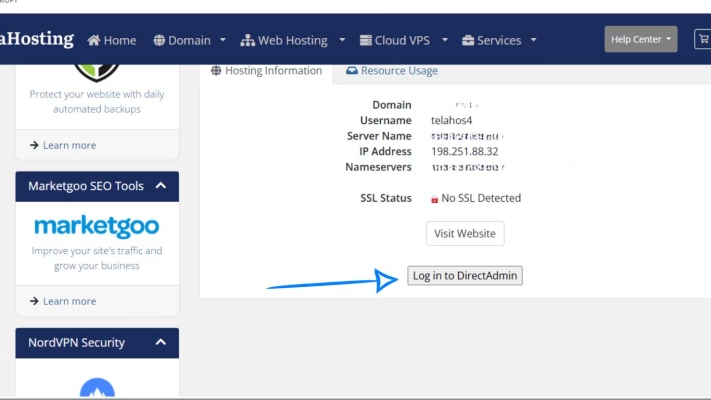
This will take you into your hosting control panel.
STEP 2: Open DNS Management
Once inside DirectAdmin:
- Go to Account Manager
- Click DNS Management
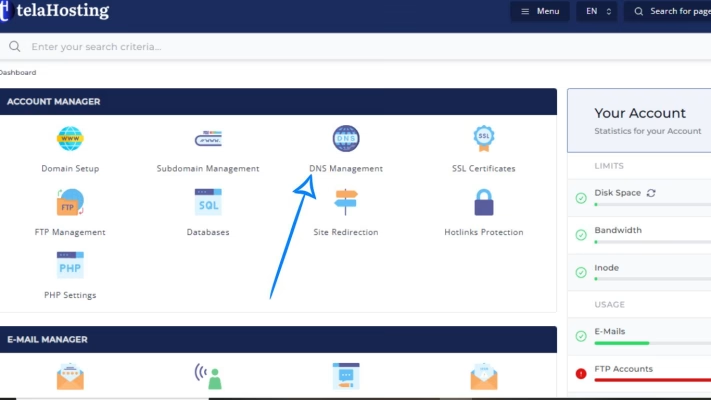
This is where you can add or edit DNS records for your domain.
STEP 3: Click “Add Record” and Choose SRV Record
Inside the DNS Manager:
- Click Add Record
- Select SRV Record
A form will appear with fields you must fill.
This is where you’ll paste the details from the service provider.
STEP 4: Fill In Your SRV Record Details
Here’s how to enter everything correctly.
1. NAME, this is usually written like: _service._protocol
For example:
- Discord: _tcp
- Teams SIP: _tls
- Zoom: _xmpp-client._tcp
If a specific host is required, they will tell you.
2. PRIORITY: 0, 5, 10 etc
Lower numbers = higher importance.
3. WEIGHT: Used when multiple SRV records exist. Usually: 1, 5, 10.
4. PORT: The port number the service uses, such as: 443, 5223, 5061, 5004
5. TARGET: This is the server address the app wants you to connect to. Examples:
- sipdir.online.lync.com. (Teams)
- us-east.zoom.us-east.zoom.us. (Zoom)
- discord.com. (Discord)
Make sure there is always a dot at the end, like: discord.com.
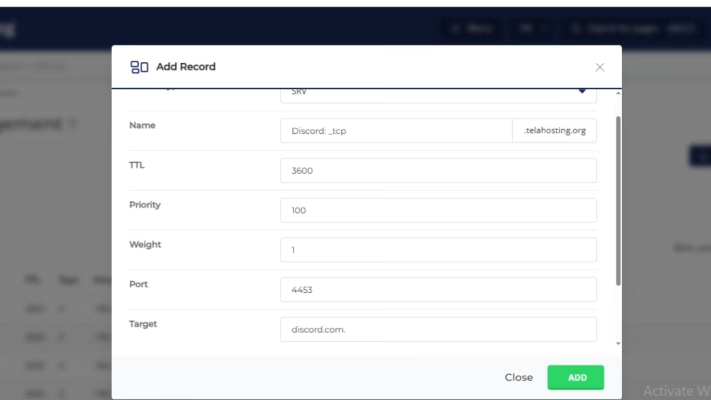
This is required in DirectAdmin.
STEP 5: Save Your SRV Record
After entering all values, Click Add. Your new SRV record will now be added to your DNS zone.
STEP 6: Wait for DNS Propagation
DNS updates may take 5–15 minutes and up to 20 hours globally
You can check the status using:
Just search for your SRV record.
Examples: SRV Records for Popular Services
Here are examples for common applications:
1. Microsoft Teams (Skype for Business / SIP)
- Name: _sip._tls
- Priority: 100
- Weight: 1
- Port: 443
- Target: sipdir.online.lync.com.
2. Zoom Chat or VoIP Services
- Name: _xmpp-client._tcp
- Priority: 5
- Weight: 0
- Port: 5222
- Target: zoom.us.
3. Discord SRV Records (For Bots or Custom Integrations)
- Name: _discord._tcp
- Priority: 0
- Weight: 5
- Port: 443
- Target: discord.com.
Conclusion
Whether you’re setting up Microsoft Teams, Zoom, Discord, or any other communication app, the key is entering the correct service values and ensuring your DNS is properly set.
FAQs
1. Do all apps require SRV records?
No — only communication apps like Microsoft Teams or VoIP services.
2. Will adding an SRV record affect my website?
No. SRV records operate separately and won’t break your website.
3. Can I add multiple SRV records?
Yes. Many services require more than one.
4. Why is my SRV record not showing online?
It may require propagation time or your nameservers may point elsewhere.
5. Do I need to delete the SRV record later?
No — keep it unless your provider tells you to remove it.
Need help? Our friendly support team is always here for you! Reach out below.
Happy hosting! 🌟