

What Exactly Is an A-Record?
A-Record as the digital address of your website. Your domain name (like yourwebsite.com) is just a name humans can read easily. But computers and browsers need an IP address (a set of numbers) to know where your website files are stored.
An A-Record connects your domain → Your hosting server’s IP address
So, if the A-Record is correct, your domain will open your website. If not, the domain won’t know where to go and the website won’t load.
When Should You Use an A-Record?
There are many situations where an A-Record is the best option, especially if:
- Your domain is registered somewhere else
- You want to connect a custom website builder or framework
- You’re pointing a subdomain (like yourdomain.com) to a different server
- You want full DNS control without touching nameservers
If any of these sound like what you want, then you’re in the right place.
Step 1: Get Your Hosting IP Address
Before touching any DNS settings, you need your hosting server’s IP.
You’ll find it in two places:
- Inside your telaHosting Client Area
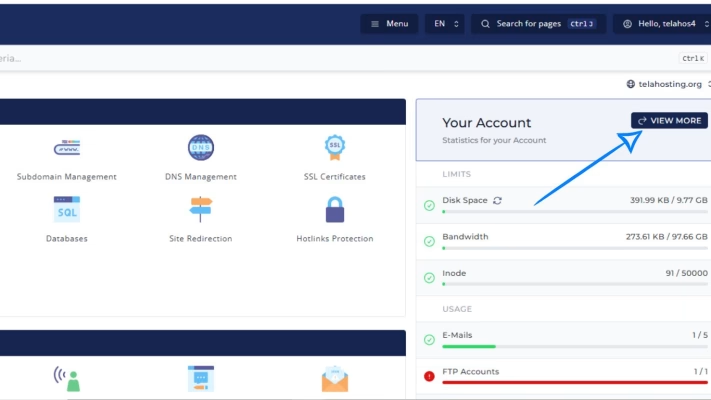
- Inside DirectAdmin
- Click on View more at the right hand site
- Click on Account configuration
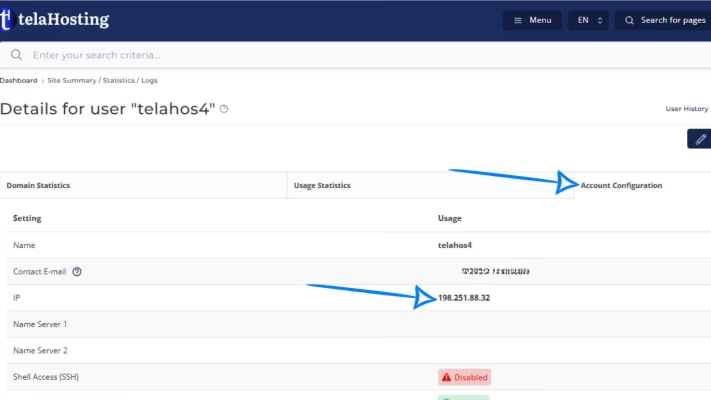
Copy the IP address — you’ll need it soon.
Step 2: Log In to Your DirectAdmin Control Panel
Next, you need to access your DNS settings.
- Go to your telaHosting Client Area
- Select your hosting package
- Click “Login to DirectAdmin”
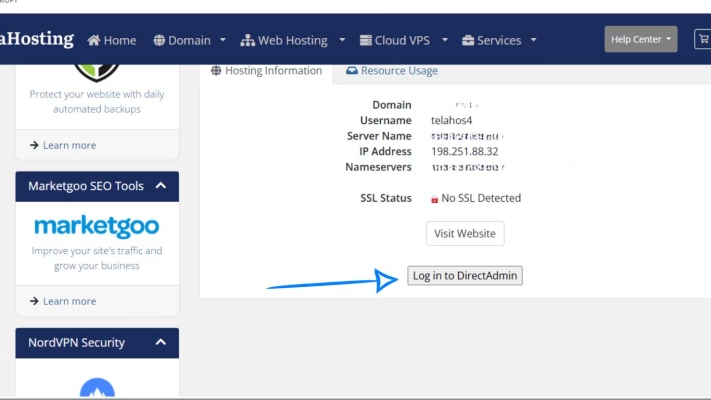
This takes you straight into your hosting dashboard.
Step 3: Open the DNS Management Section
Once you’re inside DirectAdmin:
- Scroll to Account Manager
- Click DNS Management
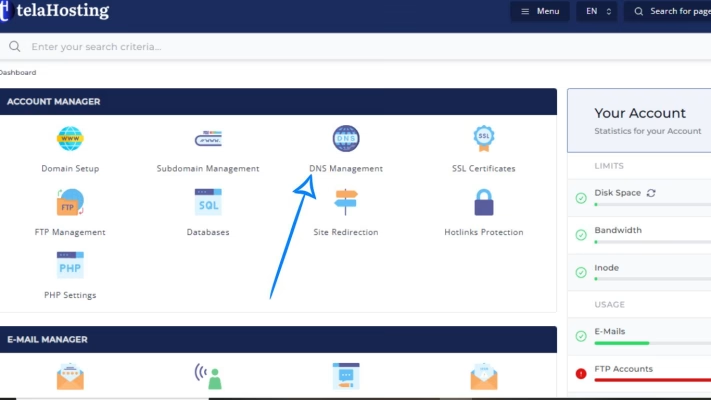
You’ll now see all the DNS records for your domain.
Step 4: Locate the Existing A-Record
You should see an existing A-Record for:
- yourdomain.com
- www.yourdomain.com
These usually point to the default server IP.
If you want to change where your domain points:
- Click Edit beside the A-Record
- Replace the IP address (Value) with your Hosting server IP
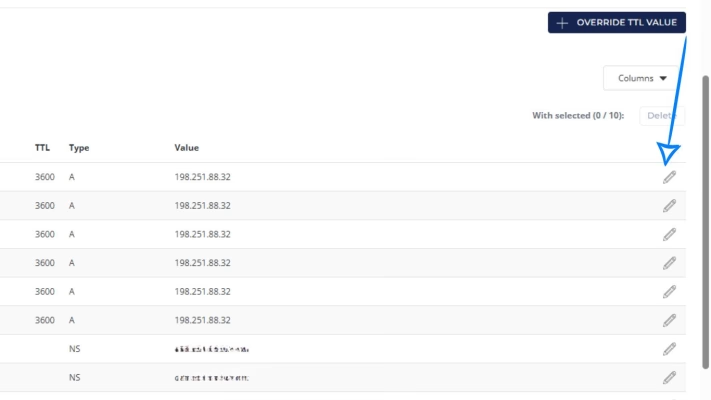
If there is no A-Record for a domain or subdomain you want to connect, then you simply add a new one.
Step 5: Add a New A-Record (If Needed)
To add a new A-Record:
1. Click Add Record
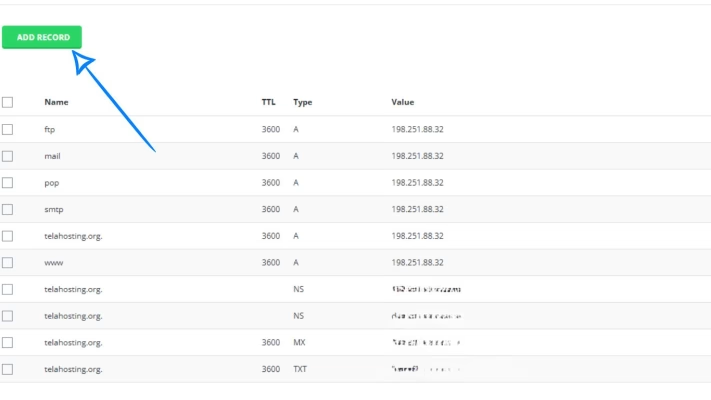
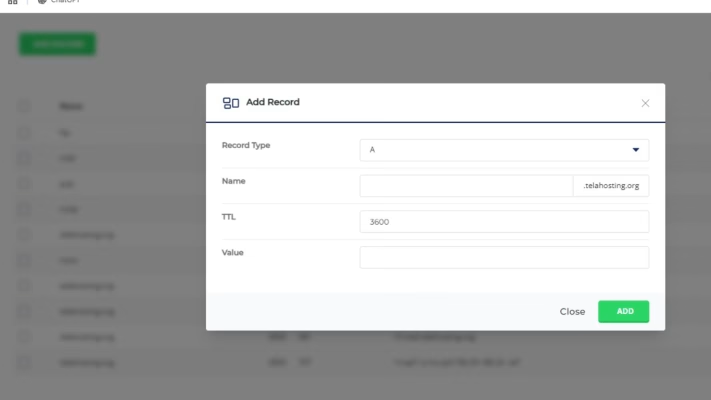
2. Choose A Record
3. Enter:
- Name:com (or the subdomain)
- Value: Your Hosting IP
- TTL: Leave as default unless the service requires something else
4. Save the record
That’s it — you’ve officially connected your domain to hosting.
Step 6: Wait for DNS Propagation
DNS changes don’t show instantly everywhere. They need time to spread globally.
Propagation time:
- Usually 5–15 minutes
- Can take up to 24 hours
Common Mistakes to Avoid
- Deleting all DNS records: Only delete what you’re sure about. Some records handle email, security, and system functions.
- Adding multiple A-Records for the same domain: Stick to only one A-Record unless you know what you’re doing.
- Using the wrong IP address: If the IP is wrong, your site will not load anywhere.
- Forgetting about the www. Version: If you only point yourdomain.com but not www.yourdomain.com, one of them won’t load.
Conclusion
Connecting your domain to your telaHosting account using an A-Record is one of the simplest and cleanest ways to get your website online. As long as you know your server IP and follow the steps carefully, the whole process takes just a few minutes.
You now have everything you need — go ahead and connect your domain with confidence!
FAQs
1. Where do I find my server IP on telaHosting?
You can find it in your Client Area or at the top of your DirectAdmin dashboard.
2. Do I need to change nameservers?
Not if you’re using A-Records. Your nameservers can remain wherever your domain is registered.
3. How long does DNS propagation take?
It usually takes a few minutes but can take up to 24 hours globally.
4. What happens if I create the wrong A-Record?
Your domain simply won’t load. Just correct the IP and save again.
5. Can I point subdomains using A-Records?
Yes! You can point any subdomain by adding a separate A-Record.
Need help? Our friendly support team is always here for you! Reach out below.
Happy hosting! 🌟