
Welcome! This guide will show you how to create a new email account in DirectAdmin in simple steps. Follow along to set up your professional email in no time!
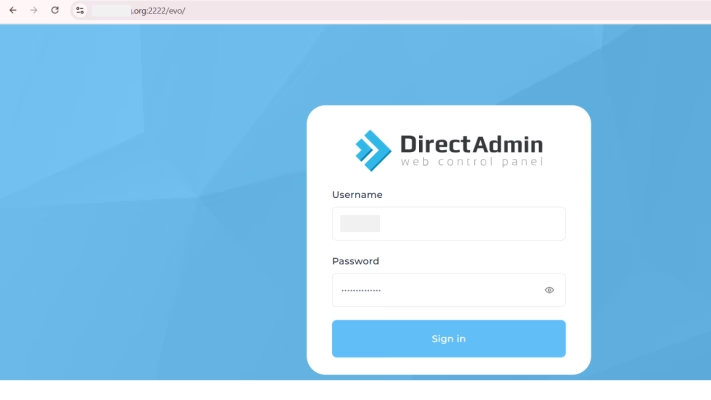
Step 1: Log in to DirectAdmin
Open your web browser and go to https://yourdomain.com:2222.
Enter your username and password.
Click Sign in.
Step 2: Navigate to the Email Accounts Section
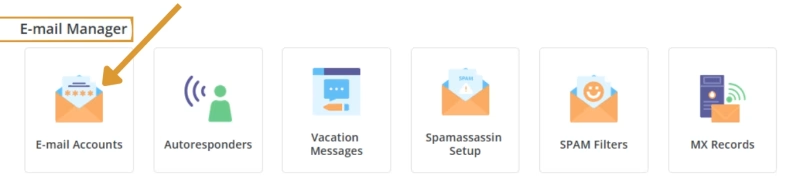
On the DirectAdmin dashboard, find the E-Mail Manager section.
Click on E-Mail Accounts.
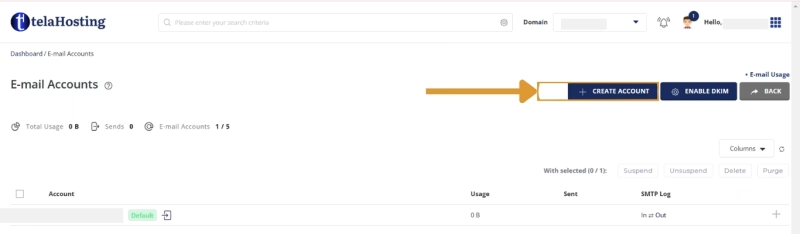
Step 3: Create a New Email Account
Click on Create Account.
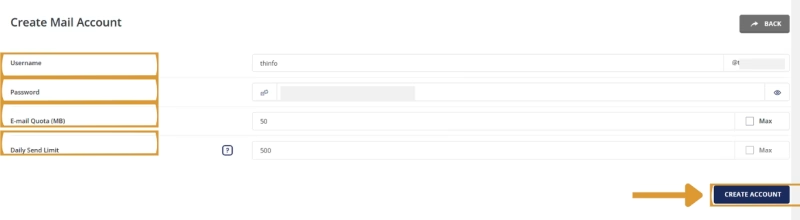
- Enter your preferred email username (e.g., info for [email protected]).
- Set a strong password
- Choose a Mailbox Quota (or leave default settings).
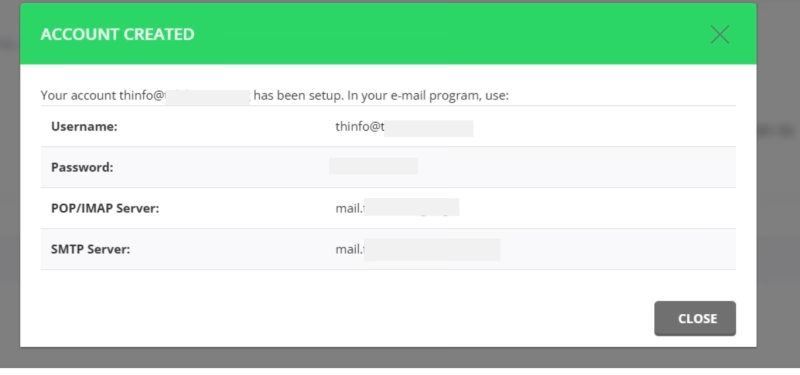
- Click Create Account to finalize the setup.
Step 4: Access Your New Email Account
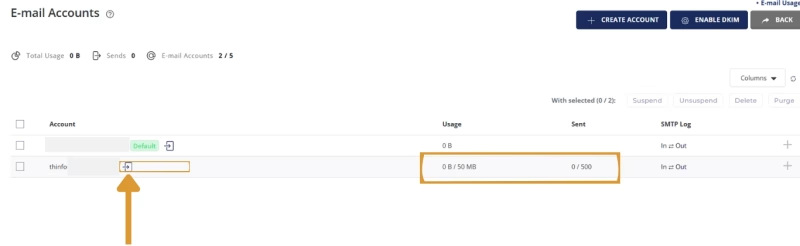
Once created, you will see your new email in the account list.
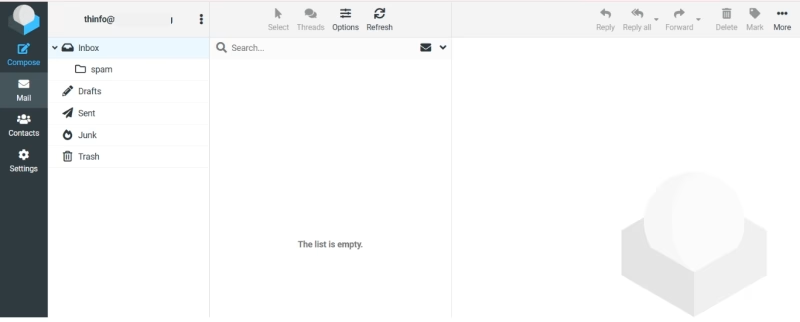
Click on the Arrow close to your email username to open your inbox.
Troubleshooting & Tips
If you can’t log in, double-check your password.
Make sure your domain’s email settings are correctly configured.
Contact support if you run into issues.
With this, you can successfully create your email address on DirectAdmin. Happy Hosting
Need help? Our friendly support team is always here for you! Reach out below.
Happy hosting! 🌟