
Seeing “Not Secure” on your website can be annoying, especially when you expect your visitors to trust your brand. The good news is that fixing this problem is one of the easiest things you can do inside cPanel, as long as you know what to check.
Why Your Website Shows “Not Secure”
Your site becomes “not secure” when:
- SSL certificate is missing
- Wrong DNS settings are preventing SSL from detecting your domain
- Mixed content (HTTP instead of HTTPS)
- You recently migrated and SSL hasn’t reactivated
- Not pointing your domain to the correct server
- Using Cloudflare without adding SSL rules
Once you know the cause, fixing it becomes easy.
1. First, Check If Your DNS Is Pointing to the Correct Server IP
SSL cannot install unless your DNS is correct. To confirm:
Step 1: Log in to cPanel
- First, log in to your telaHosting Client Area using your registered email and password.
- From the dashboard, select your hosting account and click “Log in to cPanel” to access the dashboard.
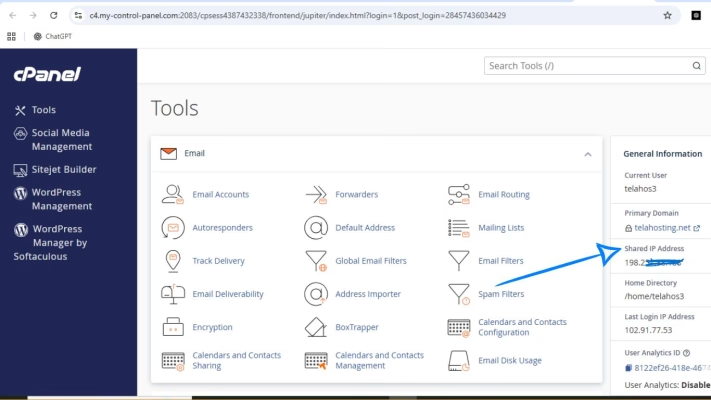
Step 2: Check your Server IP
At the right side of cPanel → Look for Shared IP Address.
Step 3: Go to Zone Editor → Manage
Look for these records:
- @ A record Server IP
- www CNAME yourdomain.com
Fix if incorrect:
- Make sure A-record points to telaHosting server IP
- Delete old records from previous host
- Avoid multiple A-records for the same name
Once DNS is correct, SSL can finally install.
2. Enable or Reinstall SSL in cPanel
Once DNS is pointing properly, the next step is to activate SSL.
Step-by-Step:
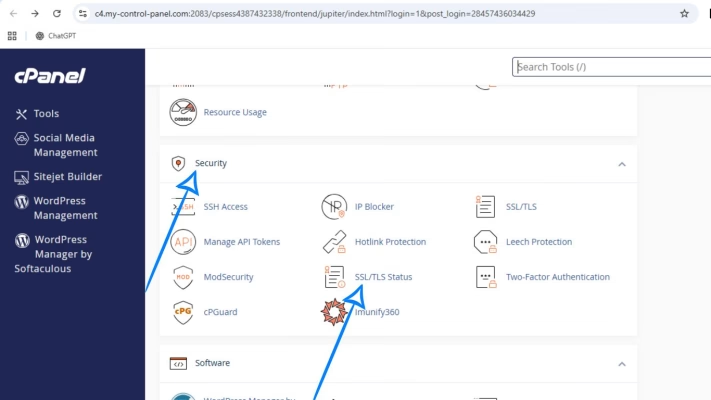
1. Go to cPanel
2. Scroll to the Security section
3. Click SSL/TLS Status
4. Select your domain and click Run AutoSSL
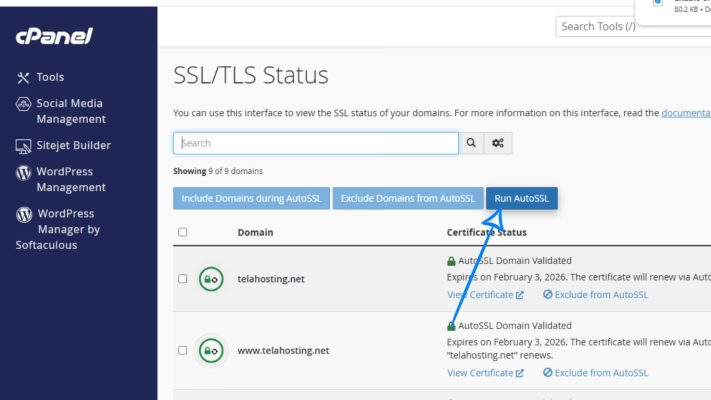
AutoSSL will:
- Generate a free SSL certificate
- Install it automatically
- Fix HTTPS errors
- Secure both www and non-www versions
Wait 3–5 minutes and refresh your site. If your DNS is correct, the padlock should appear.
3. Force Website to Load HTTPS Automatically
Even after installing SSL, your website may still load as HTTP. To fix that:
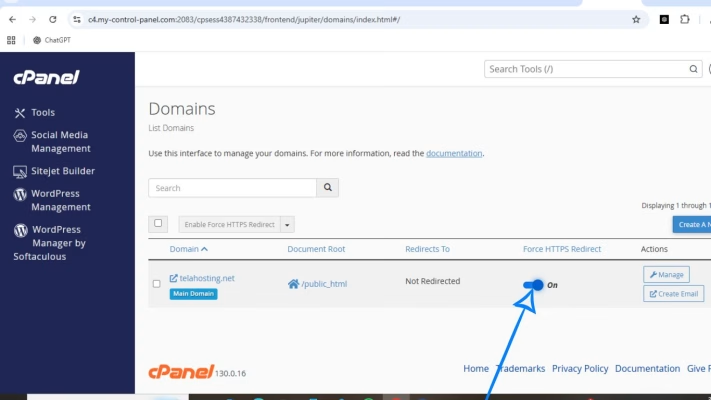
Method 1: Use cPanel “Force HTTPS Redirect”
- Go to Domains
- Look for your domain
- Toggle “Force HTTPS Redirect” ON
Method 2: Redirect HTTPS via .htaccess (Optional)
If the first method fails, use this:
- RewriteEngine On
- RewriteCond %{HTTPS} !=on
- RewriteRule ^ https://%{HTTP_HOST}%{REQUEST_URI} [L,R=301]
Paste inside your .htaccess located in public_html.
4. Fix Mixed Content (Images, CSS, or JS Loading via HTTP)
If your site still shows partially secure, your files may still be using HTTP links.
How to fix it:
For WordPress Users:
- Install this plugin: Really Simple SSL
- It fixes all mixed-content issues automatically.
Manual Fix for Non-WordPress Sites:
Check your links:
- Change: http://yourdomain.com/image.jpg to: https://yourdomain.com/image.jpg
- Replace any hardcoded HTTP URLs in:
- CSS files
- JS files
- Image paths
- Theme header/footer files
5. Using Cloudflare? Update DNS + Set SSL Mode Correctly
If you’re using Cloudflare, your SSL must be handled there.
- Update DNS: Cloudflare → DNS → Make sure A-record points to telaHosting IP.
- Set SSL Mode to “Full”
Go to: SSL/TLS → Mode → Select “Full”
Avoid “Flexible” — it breaks HTTPS on your server.
6. Reissue SSL After Migration or DNS Change
If you recently migrated to telaHosting or changed DNS, the old SSL becomes invalid.
Just reinstall:
- cPanel → SSL/TLS Status
- Run AutoSSL
This reissues a fresh certificate.
7. Clear Browser & Device Cache
Sometimes the browser still shows the old insecure version.
Fix it by:
- Hard refresh: CTRL + SHIFT + R
- Close & reopen browser
- Try mobile data
- Clear Chrome cache
You’ll now see the secure padlock.
Conclusion
Fixing a “Site Not Secure” issue is not as complicated as it looks. Most times, all you need is the right DNS settings and a fresh SSL installation from cPanel. Once your domain points correctly to telaHosting servers and SSL is activated, your site becomes fully secure and trusted.
FAQs
1. How long does SSL take to activate?
Usually within 5 minutes after DNS is correct.
2. Why is my site still not secure after installing SSL?
Mixed content or incorrect redirect settings.
3. Do I need to buy SSL?
No, telaHosting gives you free AutoSSL.
4. Will SSL help with SEO?
Yes, Google ranks HTTPS websites higher.
5. Does DNS affect SSL?
Absolutely. Wrong DNS = SSL cannot install.
Need help? Our friendly support team is always here for you! Reach out below.
Happy hosting! 🌟