
What Does “Site Not Secure” Really Mean?
When a browser says your site is “Not Secure,” it usually means one thing, your website does not have a valid SSL certificate, or it’s not configured correctly.
SSL (Secure Sockets Layer) is what turns: http://yourdomain.com into: https://yourdomain.com
That little padlock icon tells visitors your site is safe. Without it, browsers like Chrome will warn users and that can scare people away fast.
Common Reasons for “Site Not Secure” Errors
Before fixing anything, let’s understand what usually causes this issue:
- SSL certificate not installed
- SSL installed, but DNS points to the wrong IP
- Domain or www not included in the SSL
- Mixed content (HTTPS page loading HTTP files)
- Expired or invalid SSL
- Wrong nameservers
Once we fix these properly, the warning disappears.
Step 1: Confirm Your DNS Is Pointing to telaHosting
SSL will not work if your domain points to the wrong server.
What to check:
- Log in to DirectAdmin
- Go to Account Manager → DNS Management
- Check your A record
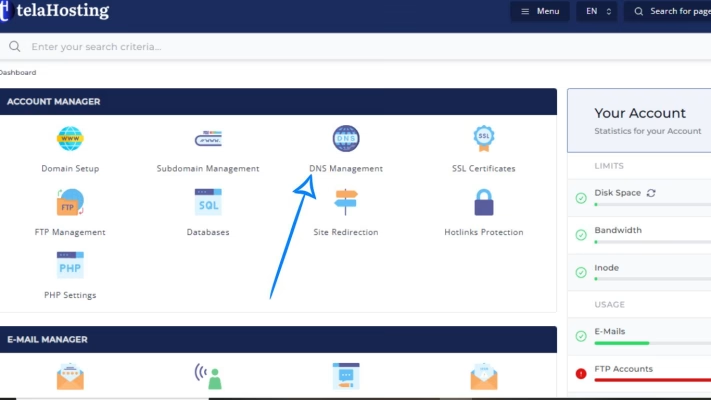
It should look like this:
Type: A
Name: yourdomain.com
Value: Your_telaHosting_server_IP

Also confirm: www points to the same domain or IP
If DNS is wrong, fix it first — SSL depends on correct DNS.
Step 2: Make Sure Your Nameservers Are Correct
DNS changes only work where your nameservers point. Check at your domain registrar that you’re using:
- telahosting.com
- telahosting.com
If your nameservers point elsewhere (like Cloudflare), SSL must be managed there instead of DirectAdmin.
Step 3: Install a Free SSL Certificate in DirectAdmin
1. Log in to DirectAdmin
2. Go to Account Manager
3. Click SSL Certificates
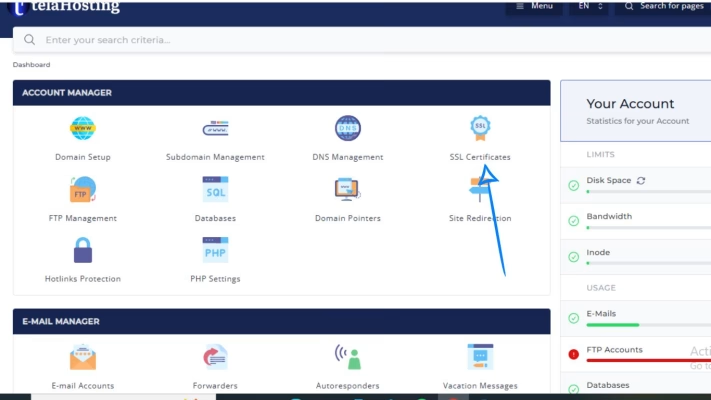
4. Click on Enable SSL Certificate
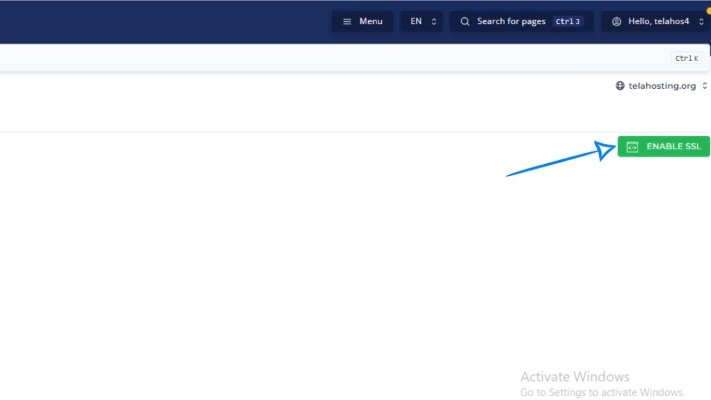
4. Select use the best match certificate
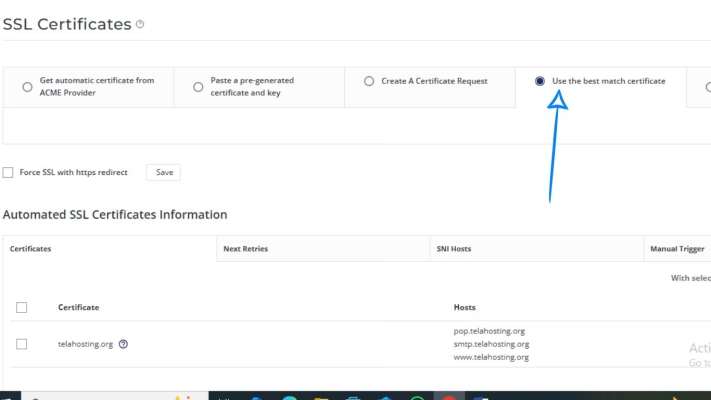
5. Select Force SSL with HTTPS Redirect
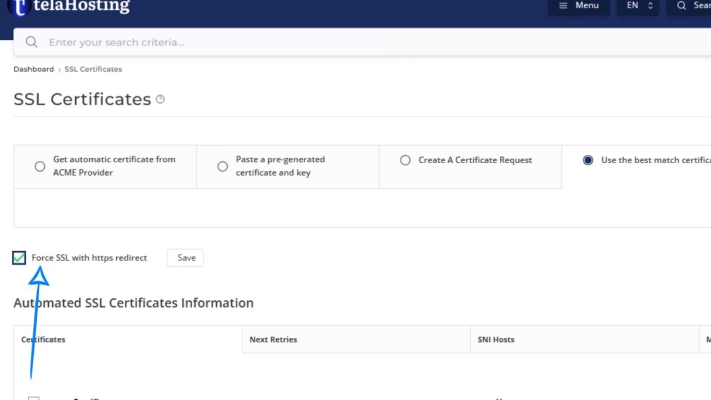
6. Tick: your main domain and www version
7. Click Save
DirectAdmin will automatically install SSL for you.
This ensures all traffic uses the secure version of your site.
Step 5: Fix “Mixed Content” Warnings
Sometimes SSL is installed, but the browser still says “Not Secure.” This usually means mixed content.
What is mixed content?
Your page loads with HTTPS, but images, scripts, or CSS load with HTTP.
How to fix:
- Update image and file URLs to https://
- Ensure that all images are uploaded to your website directly and not copy and paste (Common in WordPress)
- Use relative URLs where possible
- If using WordPress, update site URL to HTTPS
Once fixed, the padlock will appear correctly.
Step 6: Check SSL Status in Your Browser
After setup:
- Visit https://yourdomain.com
- Click the padlock icon
- Confirm the certificate is valid
You can also test using:
- WhyNoPadlock.com
- SSL Checker tools
Step 7: Clear Browser and DNS Cache
Sometimes the issue is cached locally. Try:
- Opening the site in Incognito mode
- Clearing browser cache
- Flushing DNS cache
This helps your browser load the updated secure version.
Step 8: Check SSL Renewal Status
Free SSL certificates auto-renew, but only if:
- DNS remains correct
- The domain stays active
- No manual conflicts exist
Check occasionally in: DirectAdmin → SSL Certificates
Common Mistakes That Keep the Site “Not Secure”
Avoid these mistakes:
- Installing SSL before fixing DNS
- Forgetting the www version
- Not enabling HTTPS redirect
- Editing DNS in the wrong control panel
- Ignoring mixed content warnings
Fixing these clears the issue permanently.
Conclusion
A “Site Not Secure” warning doesn’t mean your website is broken — it simply means your DNS and SSL need proper alignment. With DirectAdmin on telaHosting, fixing this is straightforward: confirm DNS, install SSL, force HTTPS, and clean up mixed content.
Once done, your site becomes safer, more trustworthy, and better for SEO and your visitors will feel confident browsing it.
FAQs
1. Does SSL affect SEO?
Yes. Google prefers secure (HTTPS) websites.
2. How long does SSL take to activate?
Usually 1–5 minutes once DNS is correct.
3. Can I use free SSL on telaHosting?
Yes. Let’s Encrypt SSL is free and automatic.
4. Why does my site still show Not Secure after SSL?
Most likely mixed content or cache issues.
5. Will SSL slow down my website?
No. Modern SSL actually improves performance.
Need help? Our friendly support team is always here for you! Reach out below.
Happy hosting! 🌟