
Why Your Website Is Not Showing After DNS Change
Most times, the problem comes from one of these:
- DNS hasn’t propagated yet
- Wrong A-record
- Cached DNS on your device or browser
- Cloudflare or firewall conflicts
- DNS zone errors
- You updated NS but not A-record
- Website files missing on the server
- SSL still pending
Once you know the cause, fixing it becomes very easy.
1. Wait for DNS Propagation (Usually 30 Minutes – 24 Hours)
After changing DNS, it takes time for the internet to recognize the new server. Even if we updates immediately, your local network might still be using old records.
What you can do:
- Check DNS propagation here: dnschecker or whatsmydns.net
- Try your site on mobile data
- Open in incognito mode
If propagation isn’t complete yet, your site may not show.
2. Confirm Your A-Record Is Pointing to the Correct Server IP
This is the most common reason. Here’s what you must check:
- Go to: cPanel → Zone Editor → Manage
- Look for: example.com A 102.xxx.xxx.xx
You must point it to the correct IP of your telaHosting server (not the old host IP, not Cloudflare IP, not localhost) If wrong → edit → replace with correct server IP → save. Give it a few minutes.
3. Check for Duplicate or Conflicting DNS Records
Sometimes multiple DNS entries fight each other. You should NOT have:
- More than one A-record for the same domain
- CNAME overlapping with A-record
- Old records from previous hosting
Fix: Delete the old or unnecessary records.
Correct format example:
- @ A serverIP
- www CNAME yourdomain.com
4. Clear Browser & Device DNS Cache
Even after you fix DNS, your device may still be seeing the old version. Try these:
- Windows: ipconfig /flushdns
- Mac: sudo killall -HUP mDNSResponder
- Browser: CTRL + SHIFT + R (Hard refresh)
- Mobile: Turn airplane mode ON → OFF.
Most times, this alone fixes the issue instantly.
5. If You Use Cloudflare, Update DNS There (Not in cPanel)
Cloudflare overrides your cPanel DNS. So if your site is connected to Cloudflare:
- Go to Cloudflare → DNS.
- Update the A-record there, not in cPanel.
Otherwise, the change will never work.
6. Ensure Your Website Files Are in the Right Folder
If DNS is correct but your website is still not showing, confirm your files are actually on the server.
- Go to: cPanel → File Manager → public_html
Check:
- Are your index.php or index.html files there?
- If using WordPress — do you see wp-admin, wp-content, wp-includes?
- If you restored a backup — did you upload to the correct directory?
If public_html is empty → upload your site again.
7. Check If Your Hosting Account Is Active
- If your hosting is suspended (due to payment or bandwidth), your DNS won’t matter — the site won’t load.
- Log in to your telaHosting client area and confirm your hosting is active and running.
8. SSL Not Installed Yet (May Cause Redirect Errors)
Sometimes your site actually loads, but SSL is forcing HTTPS and causing error: “This site can’t be reached”
Fix it:
- Go to: cPanel → SSL/TLS Status → Run AutoSSL
- Wait 5–10 minutes and reload your site.
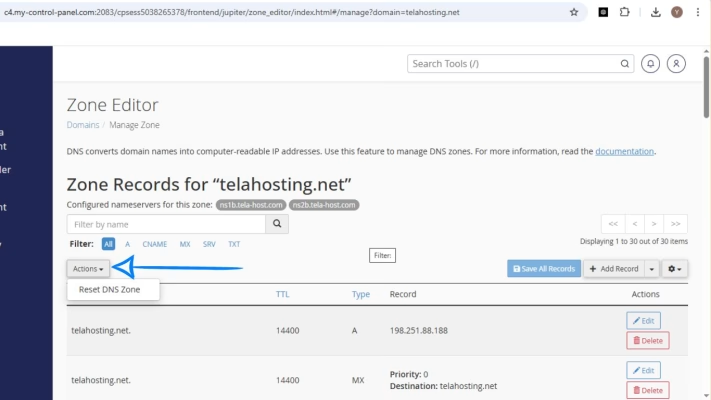
9. Reset DNS Zone to Default (If Everything Is Broken)
If you accidentally edited the wrong records:
- Go to: cPanel → Zone Editor → Manage → Reset Zone
- This restores everything to the original correct settings.
- Then add only what you need (A-record, MX, etc.)
Conclusion
When your website doesn’t show after a DNS change, it doesn’t mean anything is broken — it usually means something just needs a little adjustment. By checking your A-record, clearing cache, confirming DNS propagation, and making sure your files are in the right place, your site will start loading instantly.
FAQs
1. How long does DNS propagation take?
Usually 30 minutes to 24 hours.
2. Why does my site load on some devices but not others?
Your old DNS is cached on certain devices.
3. Should I edit DNS in Cloudflare or cPanel?
Cloudflare — always.
4. Does resetting DNS delete my emails?
MX records will reset, so you must re-add custom email settings.
5. What is the correct A-record for my hosting?
Check your telaHosting welcome email or cPanel sidebar for the server IP.
Need help? Our friendly support team is always here for you! Reach out below.
Happy hosting! 🌟