
What Really Happens When You Change DNS
When you make DNS changes, it’s important to understand one simple truth: your website usually doesn’t break.
What’s really happening is this — the internet hasn’t fully caught up yet. DNS updates need time to spread across different networks worldwide, and during that period, things can look confusing or inconsistent.
Most website issues after DNS changes usually fall into one of these common categories:
- DNS propagation delay: the update hasn’t reached all locations yet
- Wrong IP address: the domain is pointing to the wrong server
- Conflicting DNS records: old and new records are fighting each other
- Browser or local cache: your device is still showing old information
- Nameserver mismatch: DNS is being edited in the wrong place
Don’t worry — these are normal situations, and they’re all fixable. Let’s go through them one by one and clear things up properly.
Step 1: Check If DNS Has Fully Propagated
DNS changes are not instant.
Typical propagation time:
- 5–15 minutes
- Up to 24 hours worldwide
What to do:
- Visit dnschecker.org
- Enter your domain
- Select A record
- Check if the IP matches your telaHosting server IP
If different locations still show the old IP, your site may not load everywhere yet. This is normal.
Step 2: Confirm Your A Record in DirectAdmin
- Log in to DirectAdmin
- Go to Account Manager → DNS Management
- Look for your main A record
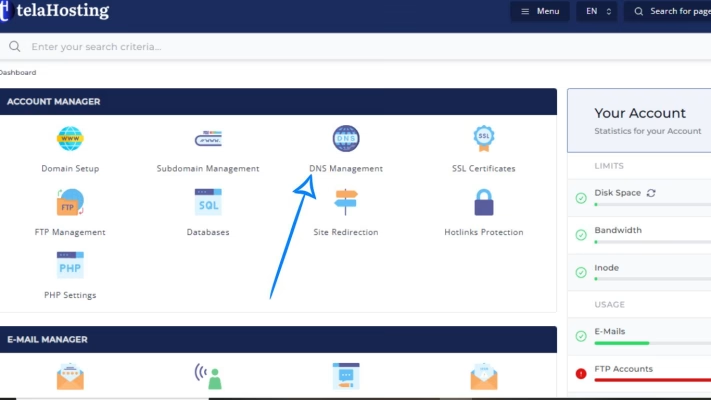
It should look like:
- Type: A
- Name: yourdomain.com
- Value: Your_telaHosting_server_IP

If the IP is wrong, update it and save.
Step 3: Check the “www” Record
Sometimes the root domain works, but www doesn’t (or vice versa).
What you should see:
- A CNAME for www pointing to your main domain
OR - An A record pointing to the same IP
Example: www → yourdomain.com
If www is missing or incorrect, your site may not load properly.
Step 4: Remove Conflicting DNS Records
Too many records can confuse DNS.
Check for:
- Multiple A records pointing to different IPs
- Both A and CNAME for the same name
- Old subdomain records
Fix:
- Keep only the correct record
- Delete outdated or unused ones
Less is more in DNS.
Step 5: Confirm Nameservers Are Correct
If your DNS is managed in DirectAdmin, your domain must use telaHosting nameservers.
Check at your domain registrar:
- ns1.telahosting.com
- ns2.telahosting.com
If your nameservers point to Cloudflare or another provider, changes in DirectAdmin won’t apply.
Step 6: Clear Browser and DNS Cache
Sometimes the website is actually working — your browser just hasn’t updated.
Try this:
- Open your site in Incognito Mode
- Try a different browser
- Clear DNS cache on your computer
For Windows: ipconfig /flushdns
This step alone fixes many “site not showing” issues.
Step 7: Check If the Website Files Exist
DNS only points traffic — it doesn’t host files.
Verify:
- Go to DirectAdmin → File Manager
- Open public_html
- Confirm your website files are there
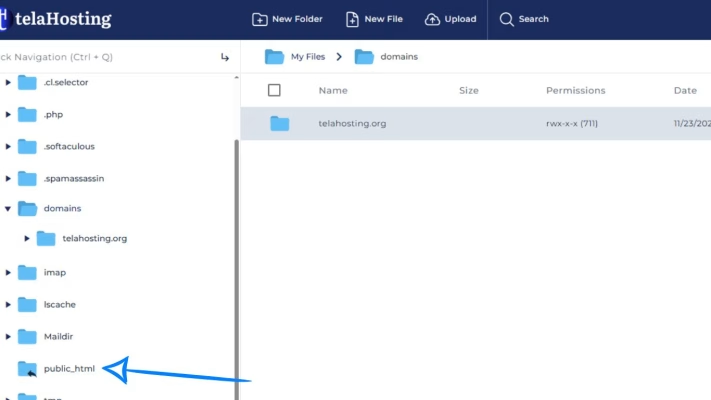
If the folder is empty, DNS is working — but there’s no site to display.
Step 8: Test the Website Using the Server IP
This helps confirm whether the issue is DNS or hosting. Test: http://SERVER_IP
If the site loads with the IP but not the domain, DNS is still propagating or misconfigured.
Step 9: Check for Recent Nameserver or DNS Reset
If you recently:
- Reset DNS zone
- Switched hosting
- Changed nameservers
Then your DNS may need time to stabilize.
Always allow at least 1 hour before assuming something is broken.
Common Mistakes That Cause This Issue
Avoid these next time:
- Changing DNS and nameservers at the same time
- Deleting old records too early
- Pointing to the wrong IP
- Editing DNS in the wrong control panel
- Expecting instant results
DNS rewards patience.
Conclusion
A website not showing after DNS changes is almost always a temporary issue. In most cases, it comes down to propagation time, an incorrect A record, or a nameserver mismatch. With a calm approach and the right checks, you can fix it quickly — without stress.
FAQs
1. How long should I wait after DNS changes?
Up to 24 hours, but most updates work within 30–60 minutes.
2. My website works on mobile but not on my laptop — why?
Different devices cache DNS differently. Clear cache or wait.
3. Can DNS changes break my website permanently?
No — DNS changes are reversible.
4. Should I reset DNS if my site isn’t showing?
Only as a last resort. Always check records first.
Need help? Our friendly support team is always here for you! Reach out below.
Happy hosting! 🌟