
If your emails keep landing in spam, failing to send, bouncing back, or not reaching your clients at all—there’s a high chance your DNS settings are the problem. This happens a lot after a migration, new domain setup, or wrong DNS records.
Why DNS Causes Email Deliverability Problems
Email deliverability issues are mostly caused by:
- Wrong or missing MX records
- Incorrect SPF, DKIM, or DMARC
- Conflicting A or CNAME records
- Using third-party email services without updating DNS
- DNS propagation delays
- Old DNS still pointing to your previous host
Once your DNS is correct, your email becomes stable and trusted again.
1. Confirm Your MX Records Are Correct
MX records tell the internet which server should receive your emails. If they’re not correct, your email may not deliver or may bounce.
How to check MX records in cPanel
1. Log in to cPanel
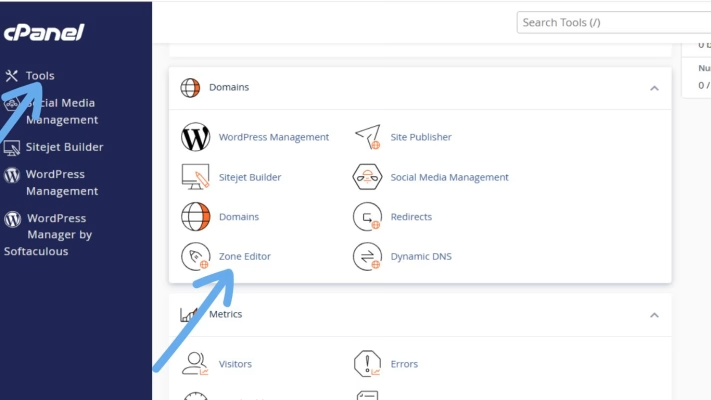
2. Go to Zone Editor
3. Click Manage
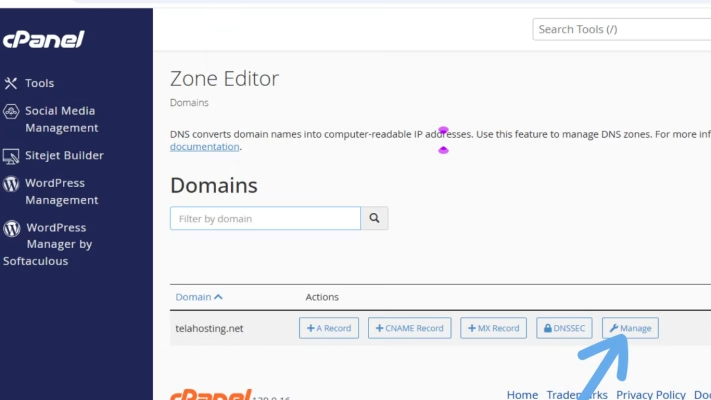
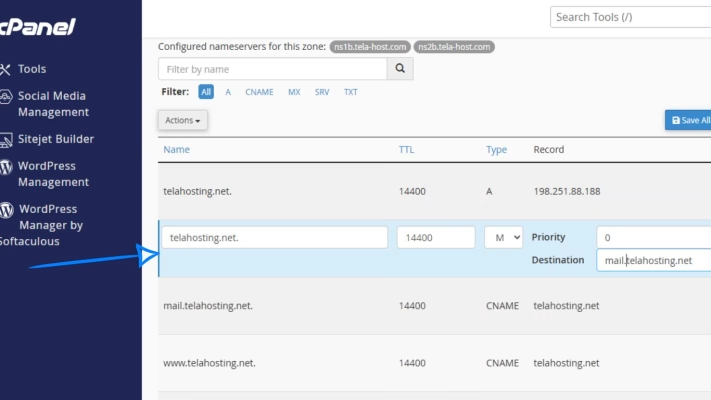
4. Search for MX
You should see something like:
- Priority: 0
- Destination: mail.yourdomain.com
If your MX records are wrong:
- Delete incorrect old MX entries
- Add a new one pointing to your server
- Make sure the priority is set to 0
Make sure you have an A-record for mail.yourdomain.com pointing to your hosting IP.
2. Enable and Verify SPF in cPanel
SPF (Sender Policy Framework) tells receiving mail servers who is allowed to send emails from your domain.
If missing or incorrect, your emails may go to spam or get rejected.
How to enable SPF:
1. Go to Email Deliverability in cPanel
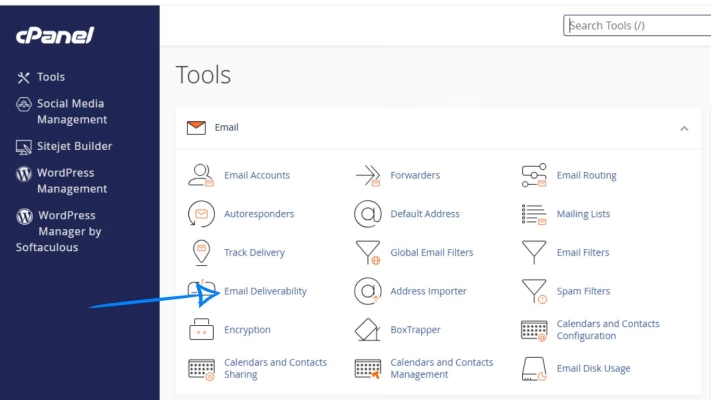
2. Find your domain
3. Click Manage
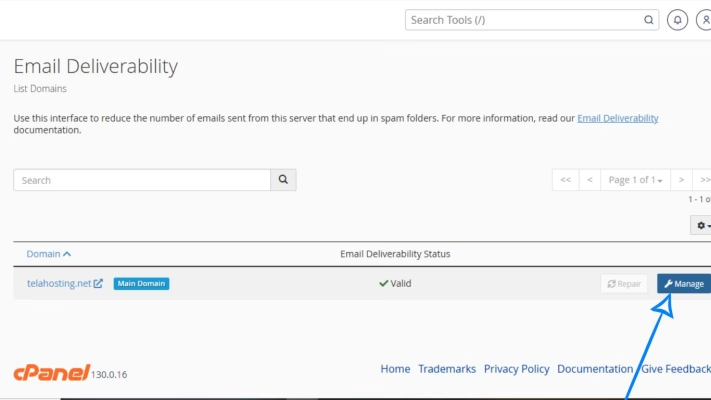
4. Click Install or Update SPF Record
A correct SPF record for telaHosting usually looks like: v=spf1 +a +mx +ip4:YOUR_SERVER_IP ~all
If you use third-party email services (Mailchimp, Google Workspace, SendGrid, etc.), add their SPF includes as needed.
3. Enable DKIM in cPanel
DKIM adds a digital signature to your emails. Without DKIM, many email providers mark your mail as “unverified.”
How to activate:
- Go to Email Deliverability
- Click Manage
- Click Install or Update DKIM Record
This installs a TXT record that validates your email authenticity. Once installed, deliverability improves immediately.
4. Add a DMARC Record (Recommended)
DMARC helps receive servers (like Gmail) trust your emails. It tells them how to handle suspicious messages.
Add DMARC in Zone Editor → Add Record
Choose TXT, then add:
- Name: _dmarc
- Type: TXT
- Value: v=DMARC1; p=none; rua=mailto:[email protected];
Note: change [email protected] to your real email and domain name
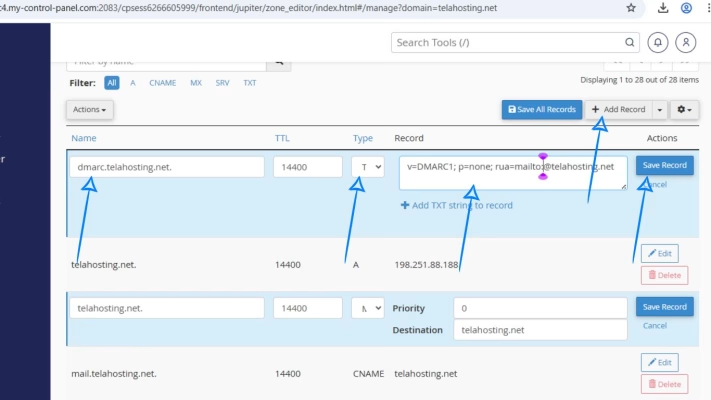
You can later change p=none to p=quarantine or p=reject once everything is stable.
5. Fix Conflicting DNS Records
Sometimes email fails because you have:
- More than one MX record
- A-records pointing to wrong servers
- Old CNAMEs overriding mail records
- DNS from previous hosting still active
How to clean things up:
Delete anything you do not recognize, such as:
- Old MX entries from previous providers
- Unused email service records
- Conflicting CNAME for “mail”
- Duplicate A-records
Keep your DNS simple and clean.
6. Check DNS Propagation Status
After correcting DNS, it needs time to update worldwide. Use these tools:
Check:
- MX
- SPF (TXT)
- DKIM
- A-record for mail
If propagation isn’t complete yet, email may behave inconsistently.
7. Make Sure Your Reverse DNS (PTR) Is Set Correctly
Email providers like Gmail and Outlook check PTR to verify your server. Most shared hosting providers configure PTR automatically.
But if you’re on VPS or Cloud server: Ask your provider to set PTR to your domain hostname. Example: SERVER_IP → mail.yourdomain.com
8. Reduce Spam Score by Checking Your Domain Reputation
Use tools like:
- mail-tester.com
- MXToolbox SPF & DKIM Check
These tools tell you:
- Why your email goes to spam
- Whether your DNS is correct
- Whether your IP is blacklisted
Aim for a score of 9/10 or higher.
9. Clear Email Cache (For Webmail and Clients)
After fixing DNS, cached settings may still cause issues. Try:
- Removing and re-adding your email to Gmail app or Outlook
- Logging out and back into webmail
- Clearing browser cookies
This forces your device to use the updated DNS.
Conclusion
Email deliverability problems can be frustrating, but once you understand that DNS controls everything—from MX records to SPF, DKIM, and DMARC, the whole process becomes easier. By correcting your DNS settings in cPanel, installing proper authentication, and cleaning up old records, your emails will start delivering reliably again.
FAQs
1. How long before my email works after fixing DNS?
Usually within minutes, or up to 24 hours during propagation.
2. Why are my emails going to spam?
Missing SPF, DKIM, DMARC, or your domain reputation is low.
3. Can wrong MX records stop all emails?
Yes—no correct MX = no email delivery.
4. Do I need DMARC?
It’s not mandatory, but highly recommended for better inbox placement.
5. Can DNS affect outgoing emails?
Absolutely. Incorrect SPF or DKIM causes outgoing mail to fail.
Need help? Our friendly support team is always here for you! Reach out below.
Happy hosting! 🌟