
What Is Google Search Console and Why You Need It
Google Search Console (GSC) is a free tool from Google that helps you understand how your website appears in Google search results. Once you verify your domain, you’ll be able to:
- Track the keywords people use to find your website
- Monitor website traffic and impressions
- Submit sitemaps for faster indexing
- Fix indexing errors
- Improve your SEO performance
- See mobile usability issues
- Monitor backlinks
- Get alerts about security issues
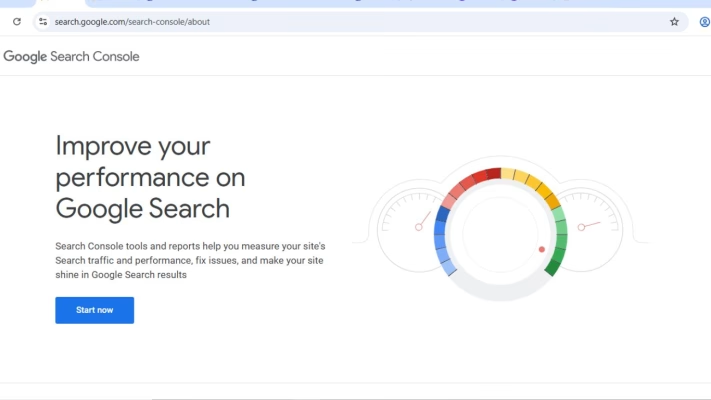
To unlock all of that, you must first verify your domain, and the easiest method is by adding a TXT record to your cPanel DNS.
Step 1: Go to Google Search Console
- Visit: https://search.google.com/search-console
- If you’re not signed in to your Google account, sign in first.
- Once inside, click “Add Property”.
- You’ll see two verification options: Domain (Recommended) and URL Prefix
- Choose Domain because it verifies your entire domain — including all subdomains and URLs.
- Enter your domain like this: yourdomain.com. (no “https://” or “www”)
- Click Continue.
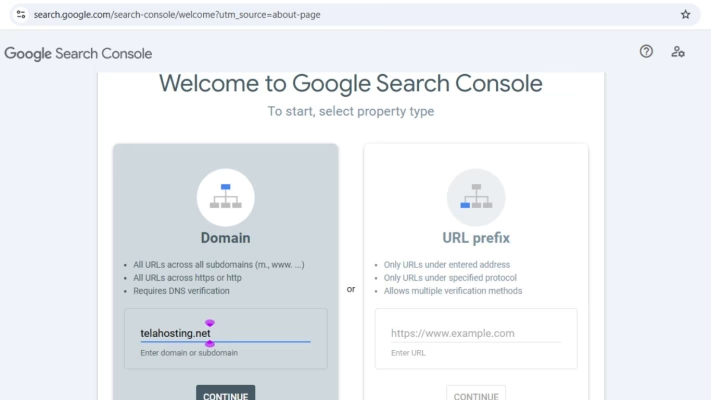
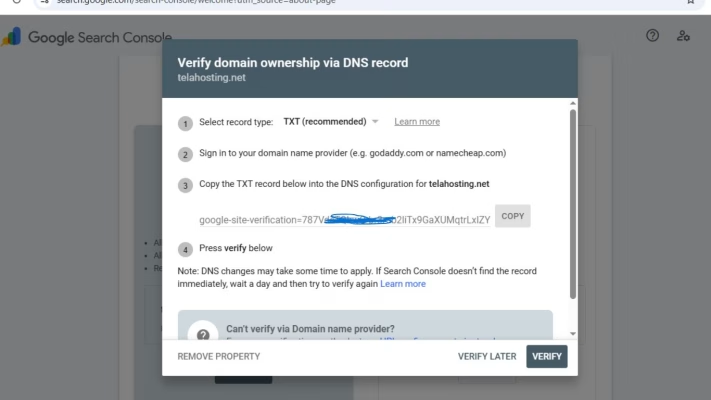
Google will now generate a TXT verification record for you.
Step 2: Copy the TXT Record Google Gives You
- Google will show you something like this: google-site-verification=abc123xyz456
- Copy this entire TXT value — you will paste it inside cPanel shortly.
- Don’t close the tab; you’ll come back to click Verify
Step 3: Log in to Your telaHosting cPanel
- First, log in to your telaHosting Client Area using your registered email and password.
- From the dashboard, select your hosting account and click “Log in to cPanel” to access the dashboard.
- Once inside, scroll down until you see Domains and click Zone Editor.
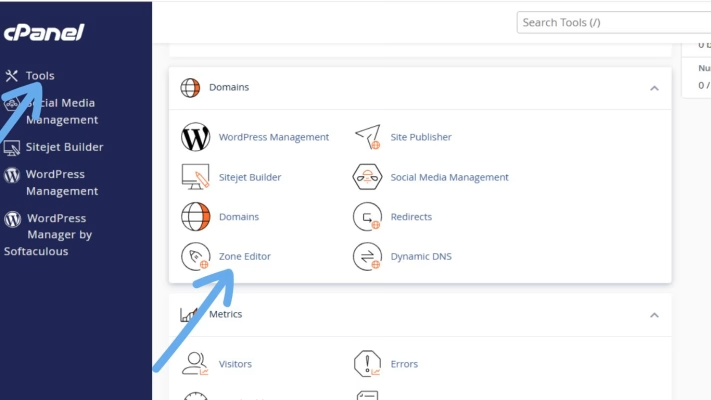
Step 4: Open the Zone Editor
- Click Zone Editor. This is where all your DNS records live — including A, MX, CNAME, and TXT records.
- Find the domain you want to verify and click Manage.
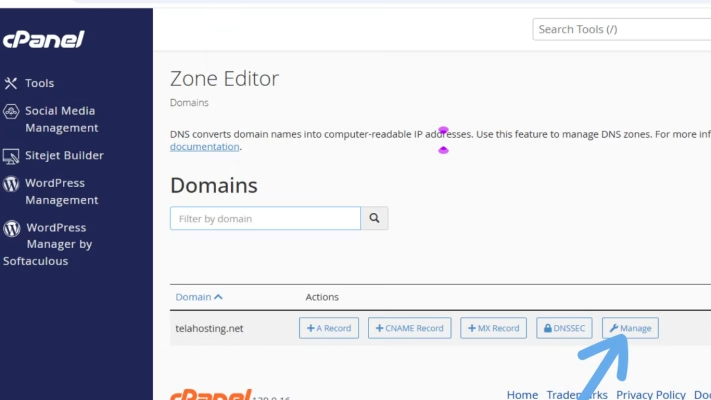
Step 5: Add a New TXT Record
- Click Add Record
- Select TXT
- In the Name field enter: yourdomain.com
- In the TXT Record field, paste the TXT record from Google, something like this: google-site-verification=abc123xyz456
- Click Save Record
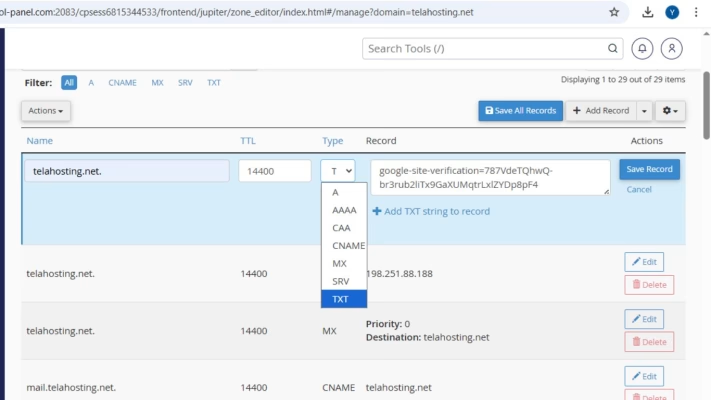
Your TXT record is now added successfully.
Step 6: Wait a Few Seconds (Or Minutes)
DNS changes usually apply quickly on telaHosting, but in some cases it can take a few minutes. You don’t need to wait too long, Google is smart enough to detect most updates almost immediately.
Step 7: Go Back to Google Search Console and Verify
- Return to the Google Search Console tab you left open.
- Click the Verify button.
- If your DNS record has propagated, you will instantly see “Ownership Verified”. Congratulations! Your domain is now officially verified on Google.
- If Google doesn’t detect it immediately, don’t panic. Simply wait a few minutes and click Verify Again.
- Sometimes DNS takes a little bit of time to sync globally.
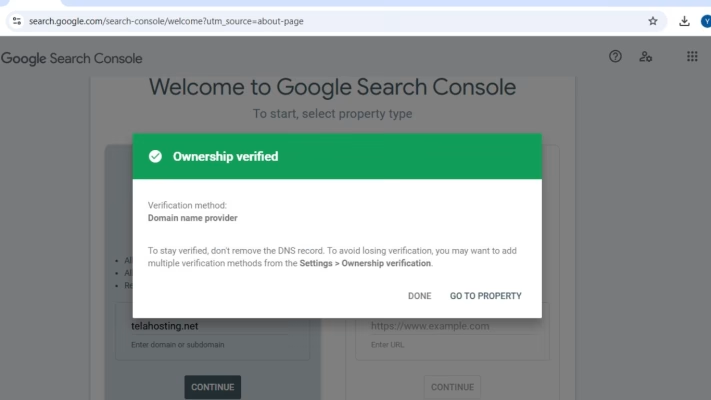
Why This Verification Method Is the Best
There are several ways to verify your website on Google Search Console, but the TXT record method is the most reliable because:
- It verifies your entire domain
- You don’t have to upload files
- You don’t need to modify your website
- It keeps things clean and safe
- Google prefers DNS verification
Plus, once you’ve added the TXT record, you never have to repeat it again.
Common Issues and How to Fix Them
1. Google Not Detecting TXT Record
This usually means:
- You added the TXT record to the wrong domain
- DNS hasn’t fully propagated yet
- You added extra spaces or wrong characters
2. Verification Fails Repeatedly
Double-check your TXT record and make sure there’s no old or conflicting record.
3. You Used the URL Prefix Instead of Domain Verification
The “Domain” method requires DNS verification only. If you choose “URL Prefix,” you’ll need different methods like HTML file upload.
Conclusion
Verifying your domain on Google Search Console using TXT records in cPanel is a simple but powerful step toward boosting your SEO and improving your website’s visibility on Google. With telaHosting’s reliable DNS system and easy-to-use cPanel tools, the whole setup takes just a few minutes.
Once your domain is verified, you unlock access to essential data that helps you grow your website, monitor performance, and make smarter decisions.
FAQs
1. How long does Google Search Console verification take?
Usually instantly, but sometimes 5 minutes to 24 hours.
2. Can I delete the TXT record after verification?
No, keep it to avoid losing ownership.
3. Can I verify multiple domains?
Yes, Google Search Console allows unlimited properties.
4. What if I don’t have cPanel access?
You can contact telaHosting support to help you.
5. Do I need hosting to verify my domain?
No, just domain-level DNS access is enough.
Need help? Our friendly support team is always here for you! Reach out below.
Happy hosting! 🌟