
If you want Google to recognize your website, index your pages faster, and give you access to important search data, then verifying your domain on Google Search Console is the very first step.
Why You Need to Verify Your Domain on Google Search Console
- Google can fully track your website performance
- You get access to search analytics (keywords, clicks, impressions)
- You can submit sitemaps for faster indexing
- You’ll see website errors and how to fix them
- Google will trust your site more because ownership is confirmed
So, yes — domain verification is one of the biggest SEO moves you can make.
What You Need Before You Begin
- Access to your DirectAdmin panel
- A Google account
- Your domain name
- Google Search Console opened
Once you have these, you’re ready to verify.
STEP 1: Open Google Search Console
- Go to: https://search.google.com/search-console/
- Click Start Now
- Log in with your Google account
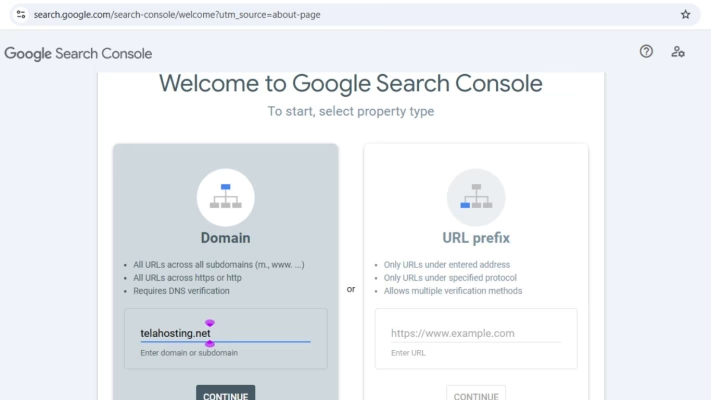
You’ll see two options:
- Domain (recommended)
- URL Prefix
Choose Domain — this verifies the entire domain (including www, http, https, and subdomains). Enter your domain like this: yourdomain.com
Then click Continue.
STEP 2: Copy the TXT Verification Record Provided by Google
Google will show you a TXT record similar to: google-site-verification=your-unique-code-here
Copy this record.
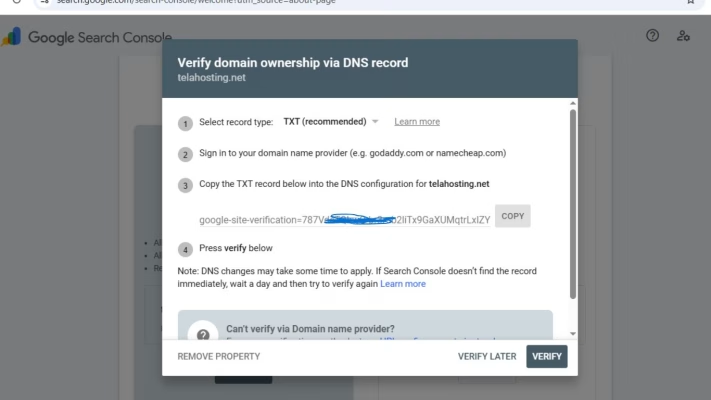
We’re going to paste it inside DirectAdmin.
STEP 3: Log Into DirectAdmin
- Open your telaHosting Client Area
- Go to your hosting package
- Click Login to DirectAdmin
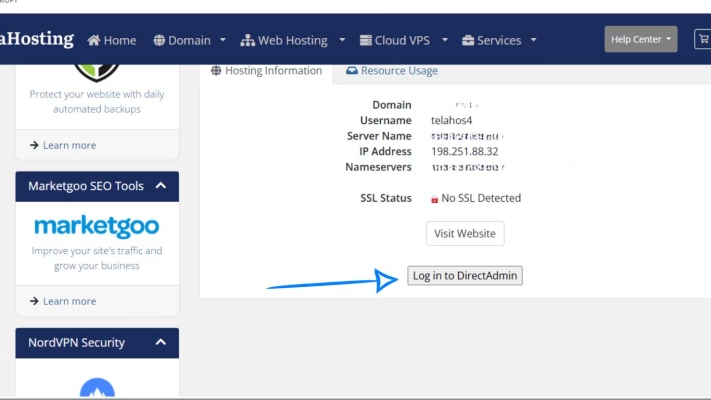
Once inside, we’ll move to the DNS settings.
STEP 4: Go to DNS Management
Inside DirectAdmin:
- Go to Account Manager
- Click DNS Management
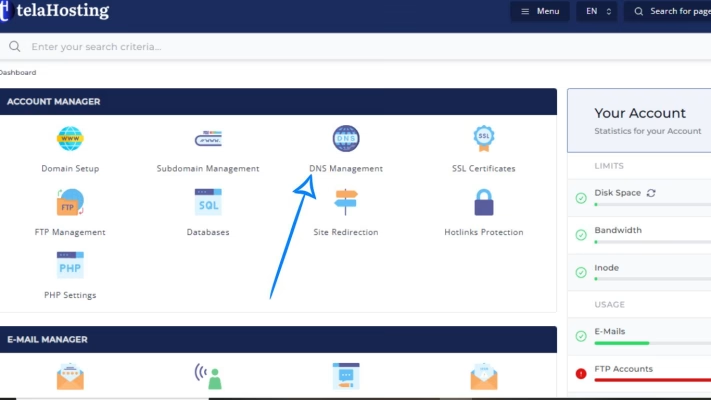
This page displays all DNS records linked to your domain.
STEP 5: Add the Google TXT Verification Record
1. Click Add Record
2. Select TXT Record
Now fill in the fields:
- Name: Leave empty or type your domain
- Value: Paste the TXT code from Google: google-site-verification=your-unique-code-here
3. Click Save.
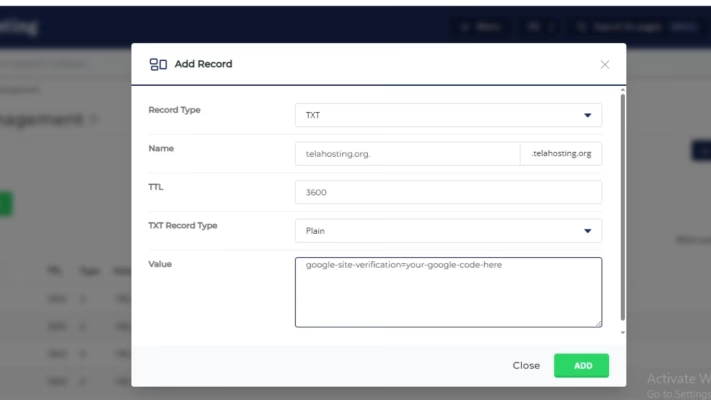
That’s it — your TXT record is now added.
STEP 6: Wait for DNS Propagation
DNS changes take a little time to update. Propagation usually takes 5–15 minutes and up to 24 hours globally
You can check your TXT record using:
Just search your TXT record.
STEP 7: Return to Google Search Console and Click “Verify”
Now go back to Search Console:
- Click Verify
- Google will check your TXT record
If everything is correct, you’ll instantly see: Ownership Verified
If it doesn’t verify yet, wait 10–20 minutes and try again — DNS may still be updating.
STEP 8: Submit Your Sitemap (Important for SEO)
Now that you’re verified:
- Go to Sitemaps in Google Search Console
- Enter: sitemap.xml
- Click Submit
This helps Google index your website faster.
Troubleshooting (If Verification Fails)
If Google cannot verify your domain, check these:
1. Did you paste the correct TXT value?
Tiny mistakes can break verification.
2. Did you add a TXT record — not a CNAME or A record?
Make sure it’s the right type.
3. Did you leave the “Name” field blank?
Some people mistakenly enter “google-site-verification” — don’t do that.
4. Is your domain using telaHosting nameservers?
If your nameservers point to Cloudflare or another provider, the DNS must be added there.
5. Has DNS fully propagated?
Wait 10–60 minutes and try again.
Conclusion
Verifying your domain on Google Search Console through DirectAdmin is simple once you know where everything is. With just one TXT record, you unlock powerful tools that help Google understand your website, index it properly, and show it to the right audience.
FAQs
1. How long does Google verification take?
Usually under 10 minutes, but sometimes up to 1 hour.
2. Can I delete the TXT record after verifying?
No — keep it to avoid losing your verification later.
3. Does adding a TXT record affect my website?
Not at all. TXT records don’t change how your website loads.
4. What if my nameservers are not pointing to telaHosting?
You must add the TXT record on the DNS provider currently managing your domain.
5. Do I need to verify again if I change hosting?
No — as long as the TXT record stays active.
Need help? Our friendly support team is always here for you! Reach out below.
Happy hosting! 🌟