
What Is an A Record?
An A record (short for Address Record) is a type of DNS record that links your domain name to the IP address of your hosting server. It is like a phonebook: your domain name (yourwebsite.com) is the name, and the IP address (like 192.168.1.1) is the phone number.
When someone types your domain in their browser, the A record tells the internet which server to connect to, so visitors end up on your website. Without a correct A record, your domain will not know where your website lives, and people will not be able to find it online.
Why Connecting Your Domain to Hosting Is Important?
Connecting your domain to your hosting ensures that:
- Your website appears when someone types your domain name.
- Search engines can index your site correctly.
- Your emails and online services work seamlessly.
- Your brand looks professional and reliable.
What You’ll Need
Make sure you have the following ready:
- Your cPanel login details.
- Your domain name.
- The IP address of your hosting server (you can find this in your telaHosting client dashboard or in your cPanel under “Server Information”).
Step 1: Log in to Your cPanel Account
- First, log in to your telaHosting Client Area using your registered email and password.
- From the dashboard, select your hosting account and click “Log in to cPanel” to access the dashboard
Step 2: Find the DNS Zone Editor
Once inside cPanel, scroll down until you find the “Domains” section. Under this section, click on “Zone Editor.” This is where all your DNS records (A, CNAME, MX, TXT, etc.) are stored.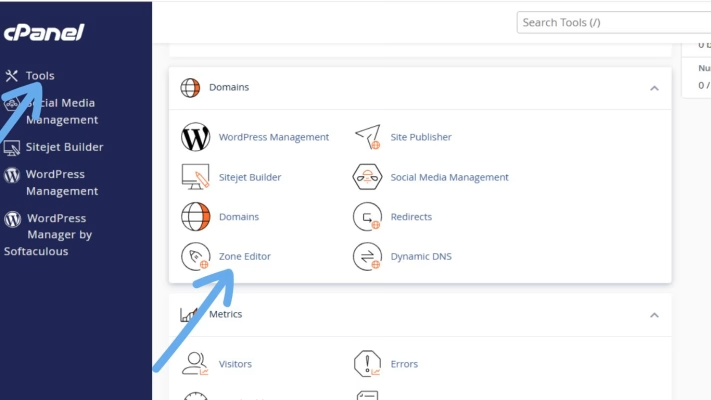
Step 3: Select Your Domain
If you have multiple domains linked to your hosting account, you will see them listed here. Find the domain you want to connect and click “Manage.”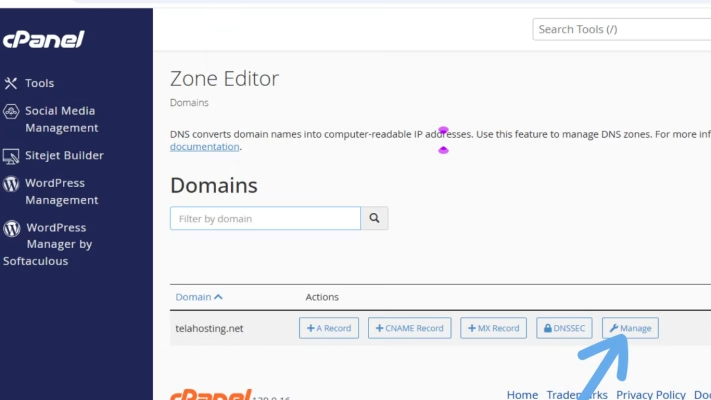
This opens the full list of DNS records associated with that domain.
Step 4: Add or Edit the A Record
Now, you will either:
- Add a new A record (if it doesn’t exist), or
- Edit an existing A record (to update the IP address).
To add a new record, click “+ Add Record.” Then choose A Record as the type.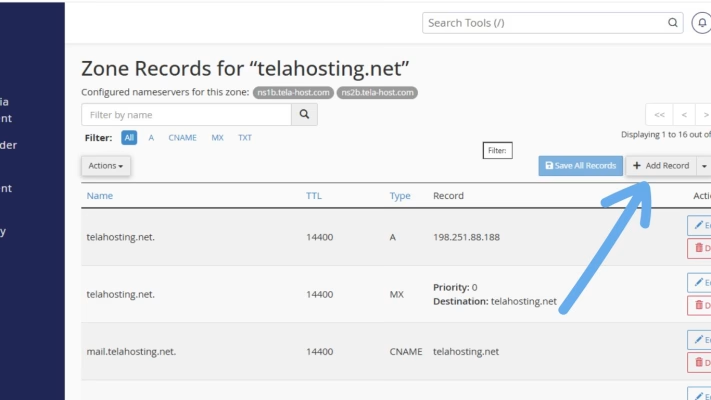
You will see fields like this:
- Name: Type “@” (this represents your main domain).
- TTL (Time-To-Live): Leave it as default (e.g., 14400).
- Record Type: Select “A.”
- Address: Enter your hosting server’s IP address.
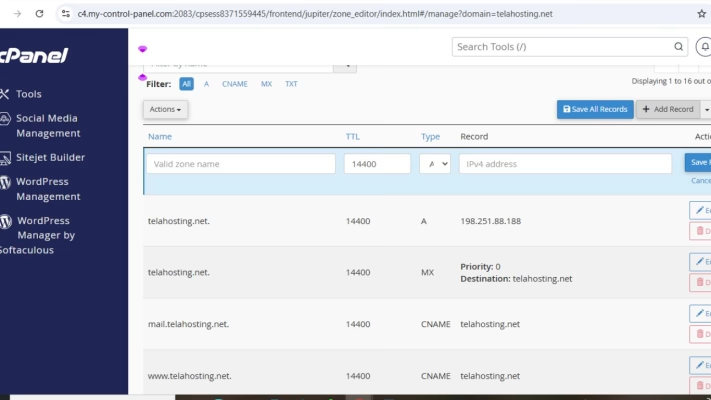
Click “Save Record.”
If there is already an A record with a different IP, simply click Edit, change the IP to your new one, and hit Save.
Step 5: Wait for DNS Propagation
After saving your changes, your domain will start pointing to your hosting server. However, DNS changes do not take effect immediately. They can take anywhere from a few minutes to 24-72 hours to fully update across the internet, this process is called DNS propagation.
To check if your A record has updated, you can use tools like:
Just enter your domain and choose “A” from the dropdown to verify the new IP.
How to Troubleshoot Common A Record Issues
If your website still isn’t showing up after several hours, here are a few quick things to check:
- Check the IP Address: Make sure you entered the correct hosting server IP.
- Clear Your Browser Cache: Sometimes your computer still remembers the old DNS data.
- Check for Duplicate Records: Having two A records for the same domain can cause conflicts.
- Confirm the Domain is Pointing to telaHosting’s Name Servers. If your domain is registered elsewhere, update its name servers to telaHosting’s.
Final Thoughts
Connecting your domain to your hosting using an A record in cPanel is not complicated once you understand the steps. It is simply about telling your domain where your website lives.
Remember, your online success starts with a solid connection between your domain and hosting and we makes that easier than ever.
Need help? Our friendly support team is always here for you! Reach out below.
Happy hosting! 🌟