
Why You Should Verify Your Domain on Meta
- You get full authority over your domain on Meta
- You can control who can edit your links, previews, and content
- Your ads become more trustworthy
- Required for some Meta Pixel and conversion features
- Protects your brand identity across Facebook and Instagram
If you’re serious about online visibility and brand protection, this is something you must do.
Step 1: Go to Meta Business Settings
To begin, you need access to your Meta Business Manager.
1. Visit: https://business.facebook.com
2. Log in to your account
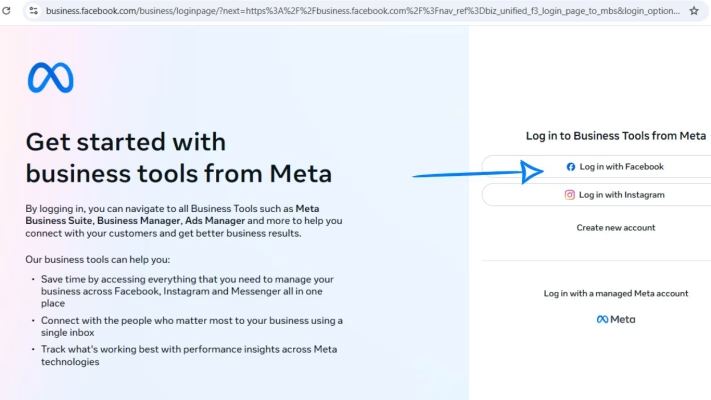
3. Go to Business Settings
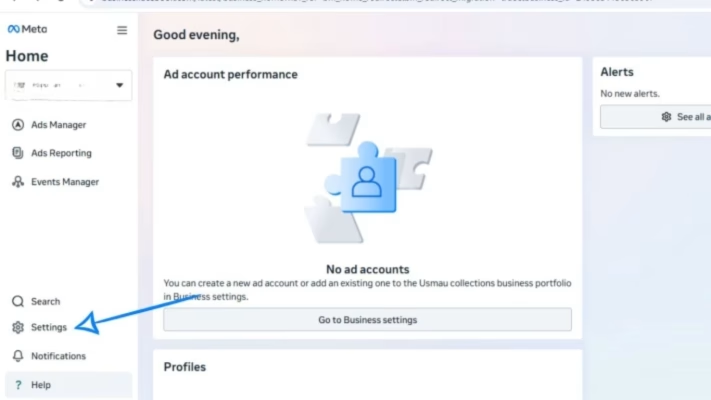
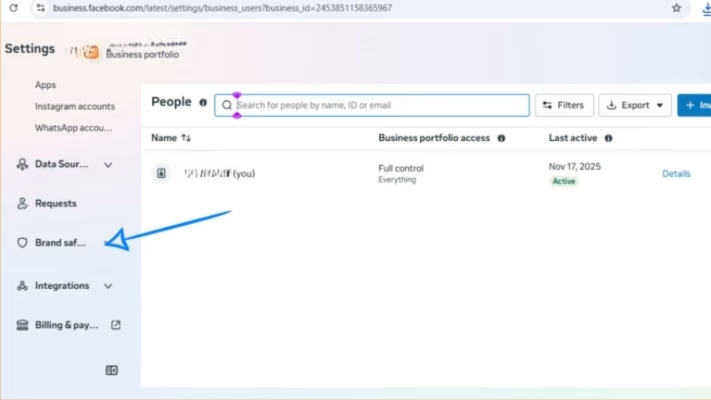
4. On the left side menu, scroll to Brand Safety
5. Click Domains
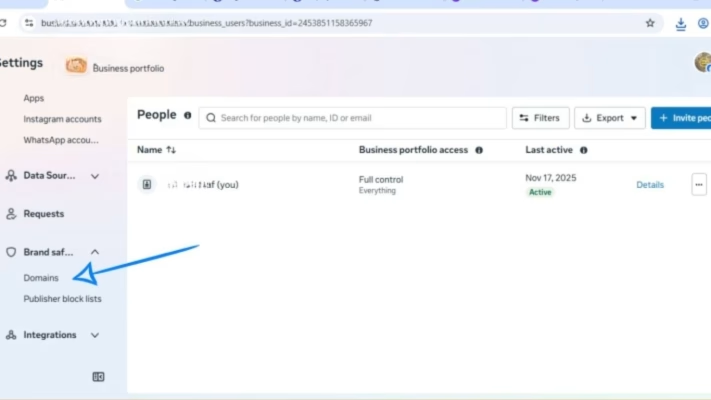
6. Click Add to register a new domain.
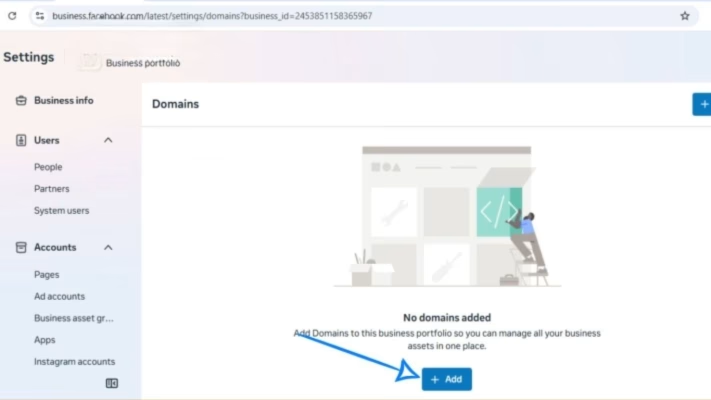
7. Enter your domain name (without “https://”). Example: yourdomain.com
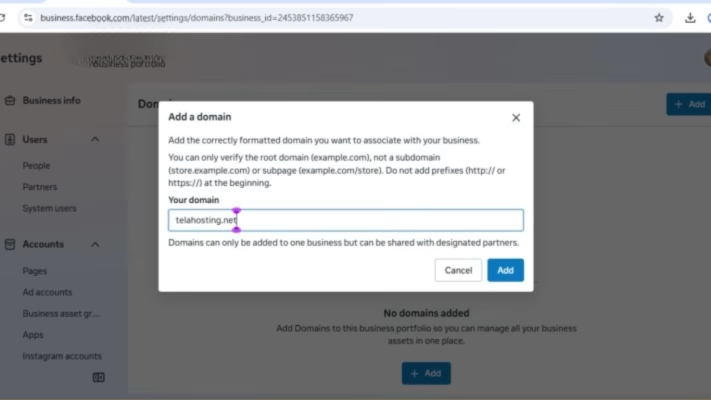
8. Click Add.
The platform will now show you three verification methods, but the one we want is DNS Verification.
Step 2: Copy the Meta DNS TXT Verification Record
1. Choose DNS Verification
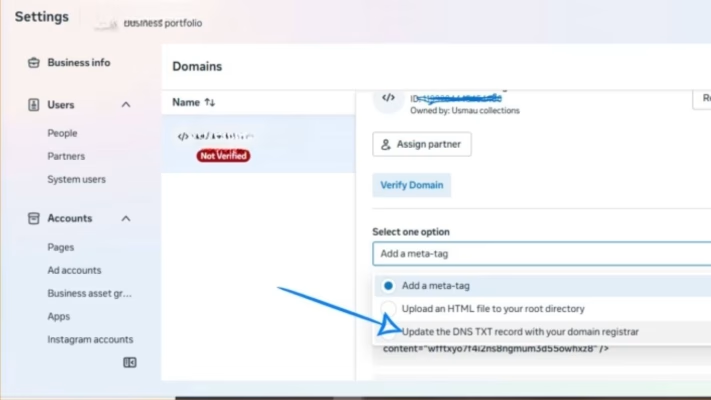
2. Meta will display a unique TXT record that looks like this: facebook-domain-verification=xyz123abc987
3. Copy it exactly as shown — this is what you’ll add to your cPanel DNS on telaHosting.
Tip: Don’t add quotation marks or extra spaces. Just copy it as it is.
Step 3: Log in to Your cPanel on telaHosting
Now, it’s time to add the DNS record on your hosting.
- First, log in to your telaHosting Client Area using your registered email and password.
- From the dashboard, select your hosting account and click “Log in to cPanel” to access the dashboard.
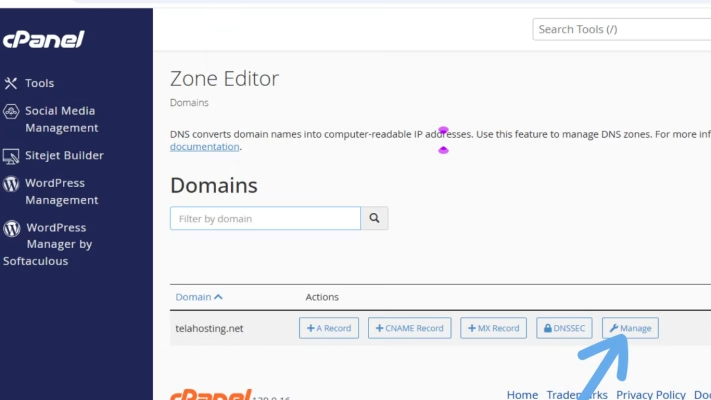
- Once inside, scroll down until you see Domains and click Zone Editor.
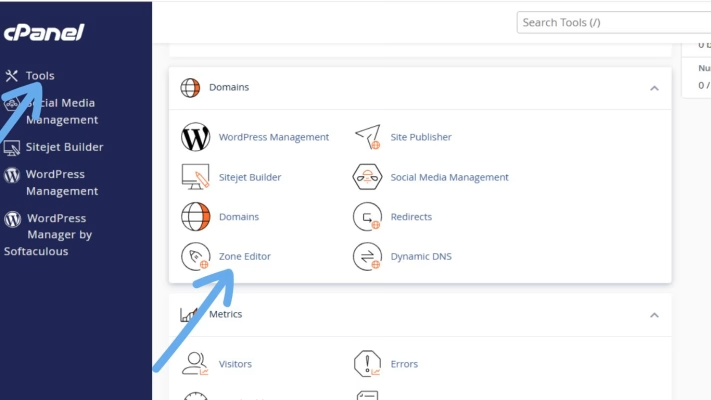
Step 4: Open Zone Editor for Your Domain
Inside Zone Editor:
- Look for your domain
- Click Manage
- You’ll now see all existing DNS records (A, CNAME, MX, TXT, etc.)
Step 5: Add the Meta Verification TXT Record
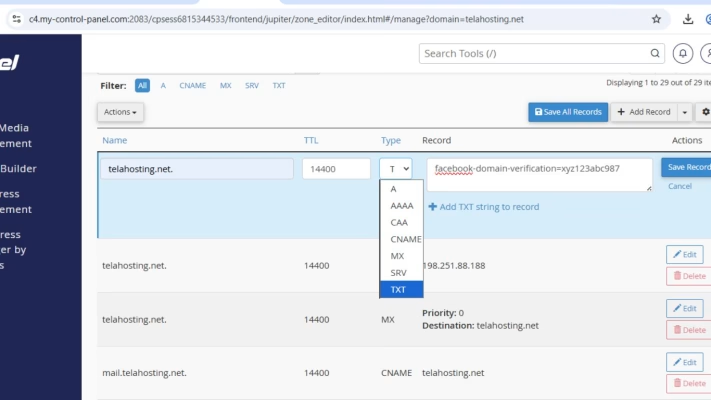
- Click Add Record
- Choose TXT Record
- Use these details:
- Name: yourdomain.com
- TTL: Leave it as default (14400 or “Auto”)
- TXT Value: Paste the record from Meta, something like this: facebook-domain-verification=xyz123abc987
Click Save Record
Step 6: Wait for DNS Propagation
DNS updates don’t reflect instantly everywhere. Propagation usually takes 5 minutes up to 24 hours
While waiting, you can check if the TXT record is visible using:
Just enter your domain and choose TXT. Once you see the value publicly, Meta will also be able to detect it.
Step 7: Return to Meta and Click “Verify”
- Now go back to platform → Business Settings → Brand Safety → Domains.
- Select your domain and click Verify
If propagation is complete, the platform will immediately verify your domain and mark it as Verified with a green tick. If not yet verified, wait a few more minutes and try again.
Common Problems & How to Fix Them
1. Domain not verifying. Your TXT record may have:
- A typo
- Wrong domain input
- Wrong “Name” field (remove subdomains)
2. You added multiple TXT records
Meta needs the EXACT record; avoid merging or editing it.
3. Propagation delay
This is normal. Some servers update slower.
4. “www” confusion
Always add the TXT record for the ROOT domain, not: www.yourdomain.com, just yourdomain.com
Conclusion
Verifying your domain on Meta (Facebook & Instagram) is a must for any business that cares about branding, advertising, and online protection. The good news is that with cPanel DNS on telaHosting, the process is straightforward and beginner-friendly.
All you need to do is:
- Add your domain in Meta Business Manager
- Copy the TXT record
- Add it to your cPanel DNS
- Wait a few minutes
- Click verify
And boom — your domain is fully verified and protected.
FAQs
1. How long does domain verification take?
Usually 5 minutes to 24 hours depending on DNS propagation.
2. Do I need hosting for Meta verification?
Yes, you need DNS access — telaHosting provides this through cPanel.
3. Can I remove the TXT record after verification?
No. Meta requires it to remain permanently.
4. Does verification affect my website?
Not at all. It only adds one TXT DNS entry.
5. Can telaHosting help me verify my domain?
Yes — our team can guide you through it anytime.
Need help? Our friendly support team is always here for you! Reach out below.
Happy hosting! 🌟