
Moving your website or email from one hosting provider to another can feel stressful, especially when DNS is involved. A small mistake can bring down your website, stop email delivery, or break important services. But the truth is, if you understand the right steps, you can migrate your DNS smoothly, safely, and without downtime.
What Is DNS Migration?
DNS migration simply means moving all your domain’s DNS records, including A-records, MX, CNAME, TXT, SPF, DKIM, SRV, and more from your old hosting provider to your new hosting provider.
DNS is like an “address book” of your domain. When moving hosts, you’re basically taking your address book with you.
If done correctly, your:
- Website remains online
- Emails continue to deliver
- Subdomains stay connected
- Third-party tools (Google Workspace, Zoho, SendGrid, etc.) keep working
The key is copy first, switch later.
Step 1: Open DNS Zone on Your Old Host cPanel
Start with your old hosting provider.
- Log in to old cPanel
- Scroll to Domains
- Click Zone Editor
- Click Manage next to your domain
Now you’ll see all your records. Your job here is to copy everything.
Step 2: Copy All DNS Records One-by-One
You’ll need to copy:
- A-Records (IP addresses): These point your domain and subdomains to your server.
- CNAME Records: Used for aliases like “www” or external apps.
- MX Records: Handles email delivery (VERY important).
- TXT Records: SPF, DKIM, DMARC, Google verification, app verification, etc.
- SRV Records: Used for Microsoft Teams, Zoom, Discord, etc.
- AAAA Records: For IPv6 (only if used).
- Custom records created by apps: Write them down or paste them into a document.
Important Tip: Do not delete anything on your old host yet because your website and email still depend on those records.
Step 3: Log In to Your New cPanel
Now open your telaHosting account:
- Log in to telaHosting Dashboard
- Access your hosting service
- Click Log in to cPanel
- Scroll to Zone Editor
- Click Manage beside the same domain
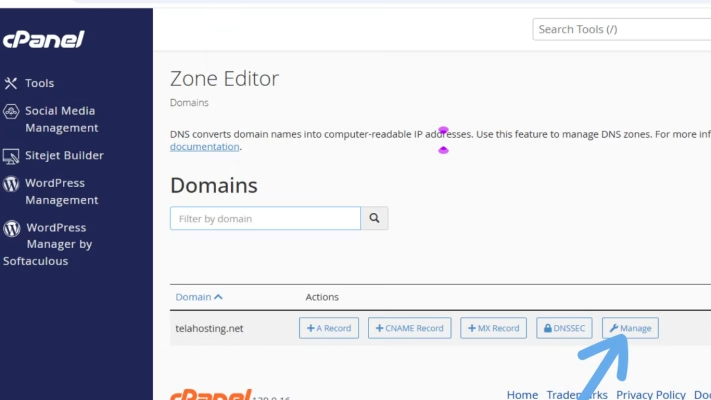
Now you’re ready to recreate your DNS records.
Step 4: Add Every DNS Record into the New cPanel
You will repeat each record from your old host exactly as it was.
Add the following:
- A-records
- CNAME
- MX (and correct priority)
- TXT (SPF, DKIM, DMARC…)
- SRV
- AAAA
- Custom settings
Keep these rules in mind:
- Subdomain format must match
- TTL can stay default (or set to 300 for faster propagation)
- MX priority must remain EXACT
- SPF must be one single line
This step ensures your domain behaves exactly the same after the migration.
Step 5: Change Nameservers to Point to telaHosting
After adding ALL the records to telaHosting cPanel, it’s time to point your domain to telaHosting.
Go to your domain registrar (where you bought your domain):
- Namecheap
- GoDaddy
- Whogohost
- DomainKing
- Google Domains
- Or even telaHosting (if purchased there)
Now update nameservers to example:
- ns1.tela-host.com
- ns2.tela-host.com
This is an example—use the exact nameservers shown in your telaHosting account. Once changed your domain will start using the DNS zone inside telaHosting.
Step 6: Wait for DNS Propagation
This step happens behind the scenes. Propagation usually takes 5–minutes to 24 hours worldwide.
Your website, emails, and records should continue working normally because:
- Old DNS was live
- New DNS is an exact copy
- The switch is seamless
No downtime, no broken links and no missing emails.
Step 7: Test Everything Carefully
After propagation:
- Test your website: It should load from the new host.
- Test email sending & receiving: MX must point correctly.
- Test subdomains: Like blog, app, store, panel, mail, etc.
- Test external services: Google Workspace, Zoho, SendGrid, Mailchimp, Microsoft 365…
If anything is not working, it means:
- A record was missed
- A value was typed incorrectly
- A priority is wrong
- You forgot to add a TXT, DKIM, or SRV record
Simply recheck and correct.
Step 8: Remove DNS from Old Hosting (Optional but Recommended)
Once everything works:
- Your website loads properly
- Emails deliver
- No DNS issues appear
You can now safely delete or ignore DNS from the old host. This prevents confusion later.
Tips for Zero-Downtime DNS Migration
Here are the safest practices:
- Copy DNS BEFORE changing nameservers
- Do not edit DNS on old host
- Do not delete old DNS yet
- Add EVERYTHING to telaHosting before switching
- Use TTL 300 for rapid propagation
- Double-check MX, SPF, and DKIM
- Keep both DNS zones live until fully stable
This ensures a clean, smooth migration without disruptions.
Conclusion
Migrating DNS from one host to another doesn’t have to be scary. As long as you copy all your records, recreate them on your new telaHosting cPanel, and only switch nameservers after everything is in place, your website and emails will stay online without any downtime.
FAQs
1. Will my site go offline during DNS migration?
No, not if you copy and recreate DNS before switching nameservers.
2. Can I migrate email records too?
Yes, MX, SPF, DKIM, and DMARC can all be moved easily.
3. How long does the whole process take?
Usually between 5 minutes to 24 hours.
Need help? Our friendly support team is always here for you! Reach out below.
Happy hosting! 🌟