
Sometimes DNS issues don’t come from one wrong record — they come from too many changes over time. Old records, test entries, deleted services, or incorrect edits can pile up and cause website or email problems. When that happens, the cleanest solution is often to reset your DNS zone back to default.
What Does “Reset DNS Zone to Default” Mean?
Resetting your DNS zone means:
- Removing all custom DNS records
- Recreating the standard default records for your domain
- Restoring a clean, working DNS configuration
After a reset, your domain will have only the basic records needed for:
- Website hosting
- Email delivery
- Nameserver functionality
This is very useful when DNS has become messy or broken.
When Should You Reset Your DNS Zone?
Resetting DNS is a powerful move — you should do it when:
- Your website stopped loading after DNS edits
- Email is failing and records are conflicting
- You moved services multiple times
- Old MX, SPF, or A records are causing issues
- DNS records look confusing or duplicated
- Support asked you to reset the zone
If everything is working fine, you don’t need this. But when things are broken, this often fixes them fast.
Warning Before You Reset
Before clicking reset, please note that resetting DNS will remove:
- Google Workspace records
- Microsoft 365 records
- Custom MX records
- SPF, DKIM, and DMARC
- Verification TXT records
- Third-party services (Mailchimp, Cloudflare, etc.)
If you use any of these, copy your current DNS records before resetting.
This gives you a safety net.
Step 1: Log In to DirectAdmin
- Go to your telaHosting Client Area
- Open your hosting service
- Click Login to DirectAdmin
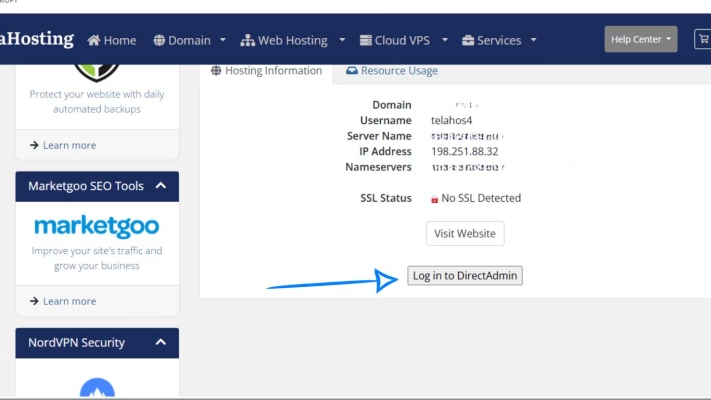
You’re now inside your control panel.
STEP 2: Open DNS Management
Inside DirectAdmin:
- Go to Account Manager
- Click DNS Management
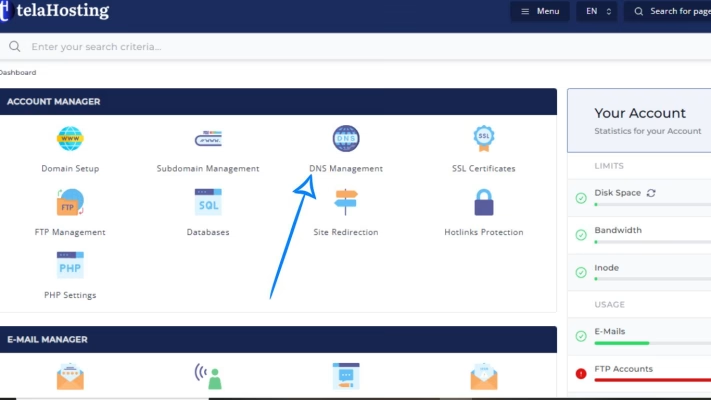
You’ll see a full list of DNS records for your domain.
STEP 3: Reset DNS Zone to Default
At the top or bottom of the DNS Management page:
- Look for “Reset DNS Zone”
- Click it
- Confirm the action when prompted
Note! If you do not see the Reset DNS Zone button, reach out to our support and we shall assist you further with the reset.
DirectAdmin will now:
- Remove all existing records
- Rebuild default DNS entries automatically
This usually takes just a few seconds.
What Default DNS Records Are Created?
After the reset, DirectAdmin will create standard records such as:
- A record for your domain (website IP)
- A record for www
- MX record for email
- NS records
- TXT records (basic system entries)
Your website and email should now work with the default setup.
Step 4: Verify Your Website and Email
After the reset:
- Visit your website in a browser
- Send and receive a test email
- Check DNS using dnschecker.org
Because DNS resets use default settings, things usually work immediately.
Step 5: Re-Add Any Custom DNS Records (If Needed)
If you use external services, now is the time to re-add:
- Google Workspace MX records
- Microsoft 365 DNS records
- SPF, DKIM, and DMARC
- Mailchimp or SendGrid records
- Domain verification TXT records
- SRV records
Add them one at a time and test after each addition.
How Long Does DNS Take After Reset?
It usually takes 5 minutes and up to 24 hours globally. Because this is a reset, propagation is usually fast.
Common Mistakes to Avoid After Reset
Avoid these issues:
- Forgetting to re-add email records
- Adding multiple SPF records
- Leaving old copied values unused
- Rushing changes all at once
- Mixing Cloudflare DNS with DirectAdmin DNS
Slow and careful is the best approach.
Should You Reset DNS If You Use Cloudflare?
No. If your domain uses Cloudflare nameservers, resetting DNS in DirectAdmin will not affect your live DNS.
In that case:
- DNS must be managed in Cloudflare
- Resetting DirectAdmin DNS is unnecessary
Always check where your nameservers point first.
Conclusion
Resetting your DNS zone to default in DirectAdmin is one of the fastest ways to fix stubborn website or email issues caused by messy DNS records. On telaHosting, the process is simple, safe, and effective — as long as you know what to expect.
Just remember:
- Back up important records
- Reset carefully
- Re-add custom records only if needed
If you follow these steps, you’ll have a clean, working DNS setup in minutes.
FAQs
1. Will resetting DNS delete my website files?
No. It only affects DNS, not your hosting files.
2. Will email stop working after reset?
Email will work with default telaHosting mail, but custom email setups must be re-added.
3. Can I undo a DNS reset?
There’s no undo button — that’s why copying records first is important.
4. Is DNS reset safe?
Yes, when done intentionally and carefully.
5. Should beginners reset DNS themselves?
Yes, as long as they follow this guide step by step.
Need help? Our friendly support team is always here for you! Reach out below.
Happy hosting! 🌟