
What Does DNS Migration Mean?
DNS migration simply means moving your domain’s DNS records from:
- Old hosting provider (DirectAdmin) to
- New hosting provider (DirectAdmin)
This process tells the internet where your website and email should now live.
If done properly, users won’t notice anything at all.
Why DNS Migration Goes Wrong (And How We Avoid It)
Most DNS issues happen because people:
- Delete old DNS records too early
- Forget important email records
- Change nameservers without preparation
- Ignore TTL settings
We’ll avoid all of that by following a clean, step-by-step process.
What You Need Before You Start
Before migrating DNS, make sure you have:
- Access to old DirectAdmin account
- Access to new DirectAdmin account
- Your domain name
- A little patience (this saves downtime)
Once you have these, you’re ready.
Step 1: Lower TTL on the Old Hosting (Very Important)
TTL controls how long DNS is cached. Lower TTL means changes propagate faster and reduce downtime risk.
What to do:
- Log in to your old DirectAdmin
- Go to Account Manager → DNS Management
- Edit important records (A, MX, TXT)
- Set TTL to: 300
Do this at least 1 hour before migration.
Step 2: Copy All DNS Records from the Old Host
Now we back up your DNS.
In the old DirectAdmin:
- Open DNS Management
- Copy all DNS records, including:
- A records
- CNAME records
- MX records
- TXT records (SPF, DKIM, DMARC)
- SRV records (if any)
Tip: Paste everything into a text document for safety.
Step 3: Log In to DirectAdmin
- Log in to your telaHosting Client Area
- Open your hosting service
- Click Login to DirectAdmin
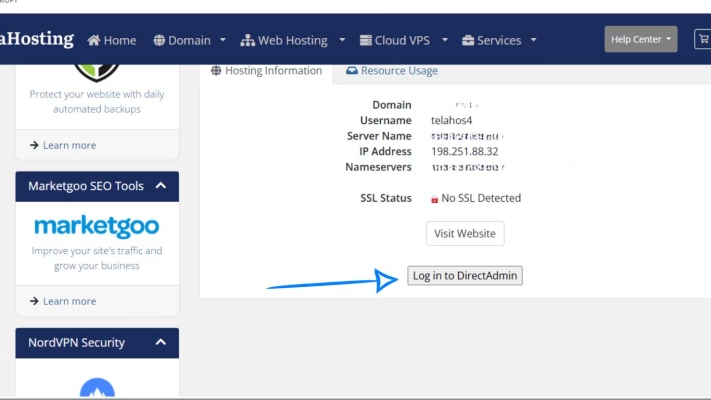
This is where your new DNS will live.
Step 4: Add DNS Records to the New Host (Before Switching)
In DirectAdmin:
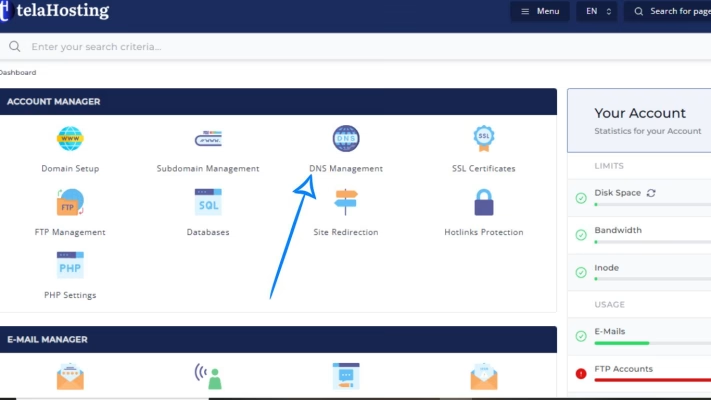
- Go to Account Manager → DNS Management
- Add the DNS records you copied earlier
- Replace:
- Old server IPs with new server IP
- Old mail servers if you’re changing email providers
Do not delete anything on the old host yet.
Step 5: Verify DNS Records on the New Host
Before switching nameservers, check that all records are correct and also confirm:
- Website IP points to telaHosting
- MX records are accurate
- SPF includes the new server
- DKIM and DMARC exist if needed
Use tools like:
Step 6: Switch Nameservers
Once everything is ready:
- Go to your domain registrar
- Replace old nameservers with current nameservers
- Save changes
Example:
- ns1.telahosting.com
- ns2.telahosting.com
Now the migration begins.
Step 7: Monitor DNS Propagation
DNS propagation usually takes 10–30 minutes and up to 24 hours (global)
During this time:
- Some users may still hit the old server
- Others will see the new one
Because both setups are live, there’s no downtime.
Step 8: Keep Old Hosting Active (At Least 24 Hours)
Do NOT cancel your old hosting immediately. Keep it active for:
- At least 24–48 hours
- Until DNS propagation is complete worldwide
This ensures zero service interruption.
Step 9: Final Cleanup After Migration
- Cancel old hosting (if no longer needed)
- Remove unused DNS records
- Increase TTL back to default (e.g., 14400)
Your migration is now complete.
Common Mistakes to Avoid
Avoid these and your migration will be smooth:
- Switching nameservers too early
- Forgetting email records
- Not lowering TTL
- Removing old DNS immediately
- Rushing the process
Slow and careful always wins.
Special Case: Email Hosted Elsewhere
If your email is hosted on:
- Google Workspace
- Microsoft 365
- Zoho Mail
Make sure:
- MX records remain unchanged
- SPF includes both old and new servers temporarily
This prevents email loss.
Conclusion
Migrating DNS from DirectAdmin to DirectAdmin doesn’t have to be stressful. With proper preparation, careful copying of records, and a patient approach, you can move everything safely — without downtime, without email loss, and without panic.
FAQs
1. Can I migrate DNS without downtime?
Yes — if you follow this guide step by step.
2. How long should I keep the old hosting active?
At least 24–48 hours.
3. Do I need to reset DNS on the new host?
No. Just add the required records manually.
4. What’s the safest TTL for migration?
300 seconds (5 minutes).
Need help? Our friendly support team is always here for you! Reach out below.
Happy hosting! 🌟