

1. Prepare your website before changing PHP
- Back up your files and database. Download a completed backup and check how it can be restored. If your account provides Backup Wizard, find it under cPanel → Files → Backup Wizard. Restoring a full cPanel account backup requires your hosting provider.
- Record your current PHP version. You will need it if you must switch back. Note whether the setting says inherit or native.
- Check your application’s requirements. For WordPress, review compatibility for WordPress itself, your theme and your plugins. For licensed software, also confirm the required PHP extensions and loader support with its developer.
- Test on a staging copy when available. Check any application updates there before changing the live site. Keep a record of changes so you can identify the cause if something stops working.
2. Log in to cPanel and find the PHP tool
- Open the cPanel login link in your hosting welcome email. If your telaHosting service page offers Log in to cPanel, you can use that option instead.
- Use the cPanel search box to search for PHP, or open the Software section.
- Look for MultiPHP Manager or Select PHP Version. Follow the matching method below. If both appear and you do not know which one controls your site, ask telaHosting Support before changing either.
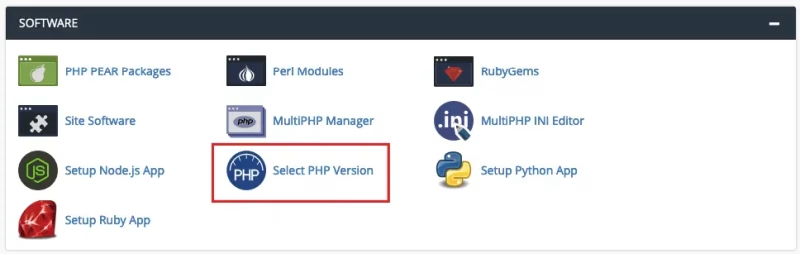
3A. Upgrade PHP using MultiPHP Manager
Use this method when MultiPHP Manager manages PHP for your domain.- Open MultiPHP Manager.
- Find the domain you want to update. Search for it if several domains are listed.
- Read the domain’s current PHP version and record it.
- Select the checkbox beside that domain. Select only the website you intend to change.
- Open the PHP Version menu. Choose PHP 8.5, sometimes labelled ea-php85, if it is offered and your application supports it. Otherwise, choose a supported compatible version or contact Support.
- Click Apply and wait for the result.
- Refresh the domain list and check that the selected version appears beside your domain. Then complete the website checks below.
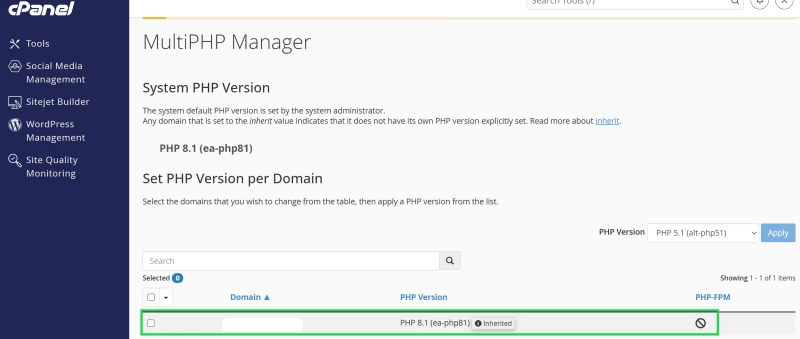
3B. Upgrade PHP using Select PHP Version
Use this method when your site is configured to use the CloudLinux PHP Selector. On standard configurations it can affect several websites in the same cPanel account; accounts with per-site isolation may offer separate domain settings.- Open Select PHP Version.
- Record the version shown beside Current PHP version. If a domain selector is provided, confirm the website you are editing.
- Open the PHP version menu and choose the newest supported stable version compatible with your application. Select 8.5 if it is available and suitable.
- Click Set as current. Some interfaces use Apply instead.
- Confirm that the selected version is now shown as current.
- Check the required extensions for that version under Extensions. If you change an extension, use the save control if your interface provides one. Enable the extensions your application requires.
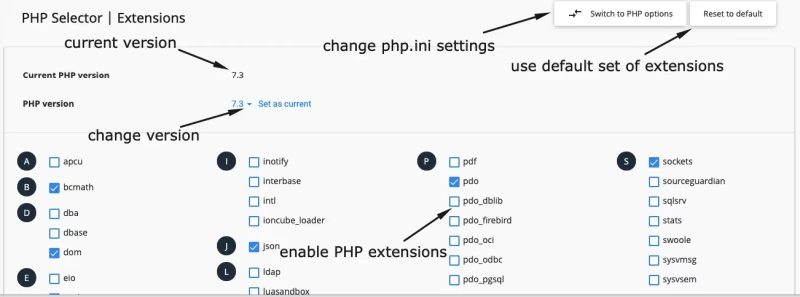
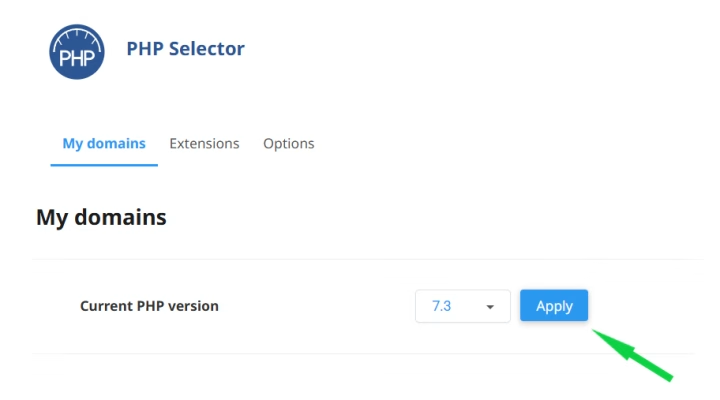
If the website still reports the old version: A domain-specific MultiPHP setting or PHP handler may override PHP Selector. Ask Support to check which configuration serves your domain; avoid switching between both tools repeatedly.
4. Verify the PHP upgrade on your website
- Open the website and test several pages, including a page that generates fresh content.
- Test login, search, forms, file uploads and other features your visitors use. For an online store, check the cart and use its supported test-payment process.
- For WordPress, open Tools → Site Health → Info → Server and read PHP version. This checks the PHP runtime serving WordPress.
- Clear relevant application or page caches if you are seeing an old cached page. Recheck your website after clearing them.
5. Restore the previous PHP version if needed
- Return to the same PHP tool you used for the upgrade.
- Select the same domain or account scope.
- Choose the previous version you recorded. Restore inherit or native only if that was the original setting.
- Click Apply or Set as current, then retest the site.
- Share the error message with Support or your developer so the compatibility problem can be resolved before trying again.
Need help? Our friendly support team is always here for you! Reach out below.
Happy hosting! 🌟